Agave AI in ChatGPT
You can connect Agave AI to ChatGPT, giving ChatGPT read-only access to your Project Management and ERP data so you can ask questions and build reports directly in ChatGPT.
What is ChatGPT?
ChatGPT is a web-based AI assistant made by OpenAI, similar to Claude or Microsoft Copilot. It provides the conversational interface you use to interact with your data through Agave MCP.
Who sets this up?
There are two ways to add Agave, depending on your access:
- Individual users go to chatgpt.com/plugins to add Agave for themselves.
- Company admins go to chatgpt.com/admin/plugins to add Agave once and make it available to everyone in the workspace.
The steps below are the same either way. If you're an admin setting Agave up for your team, the final Publish steps push it out to your whole workspace.
How do I connect ChatGPT to Agave?
1. Create the Agave app
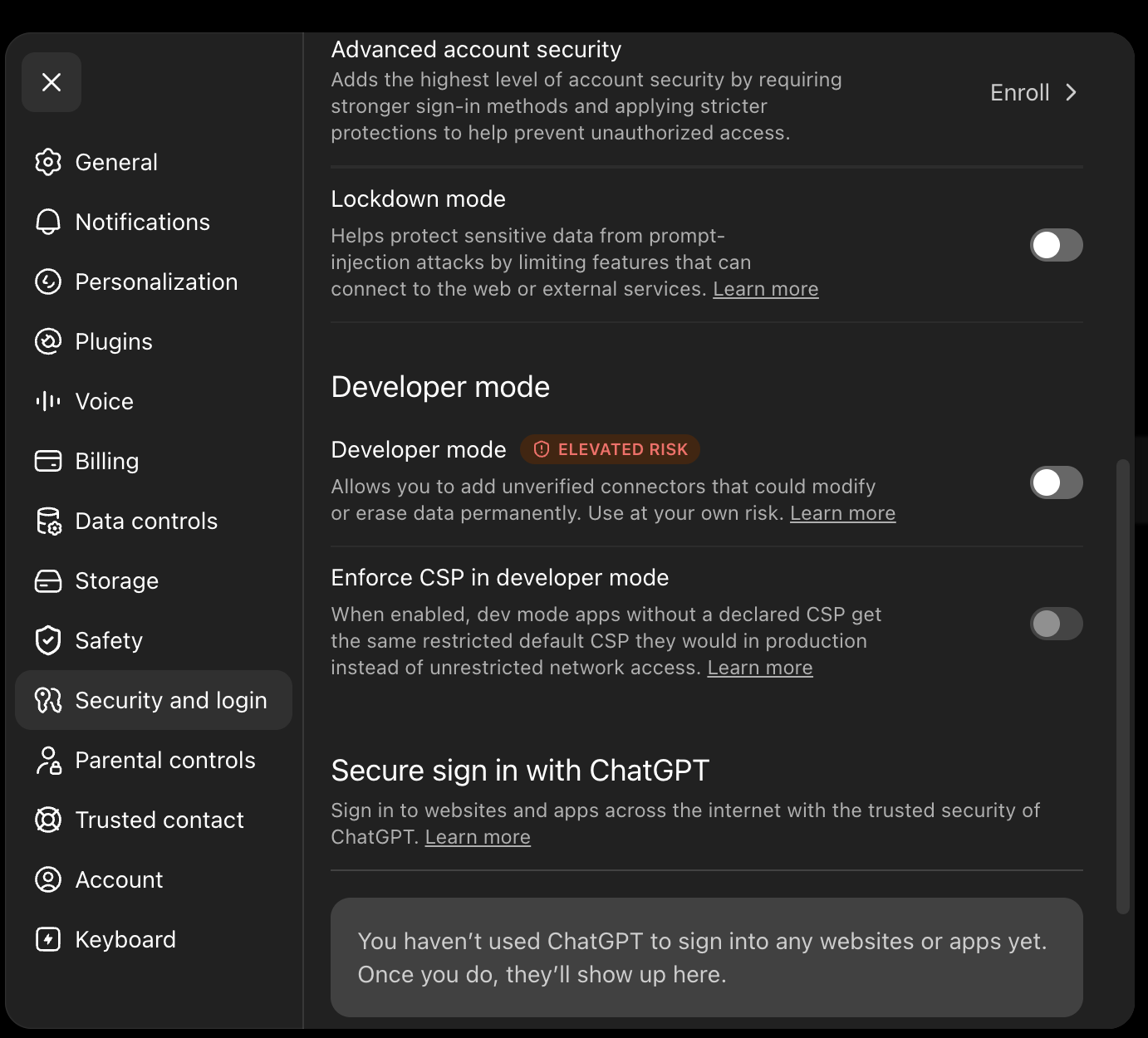
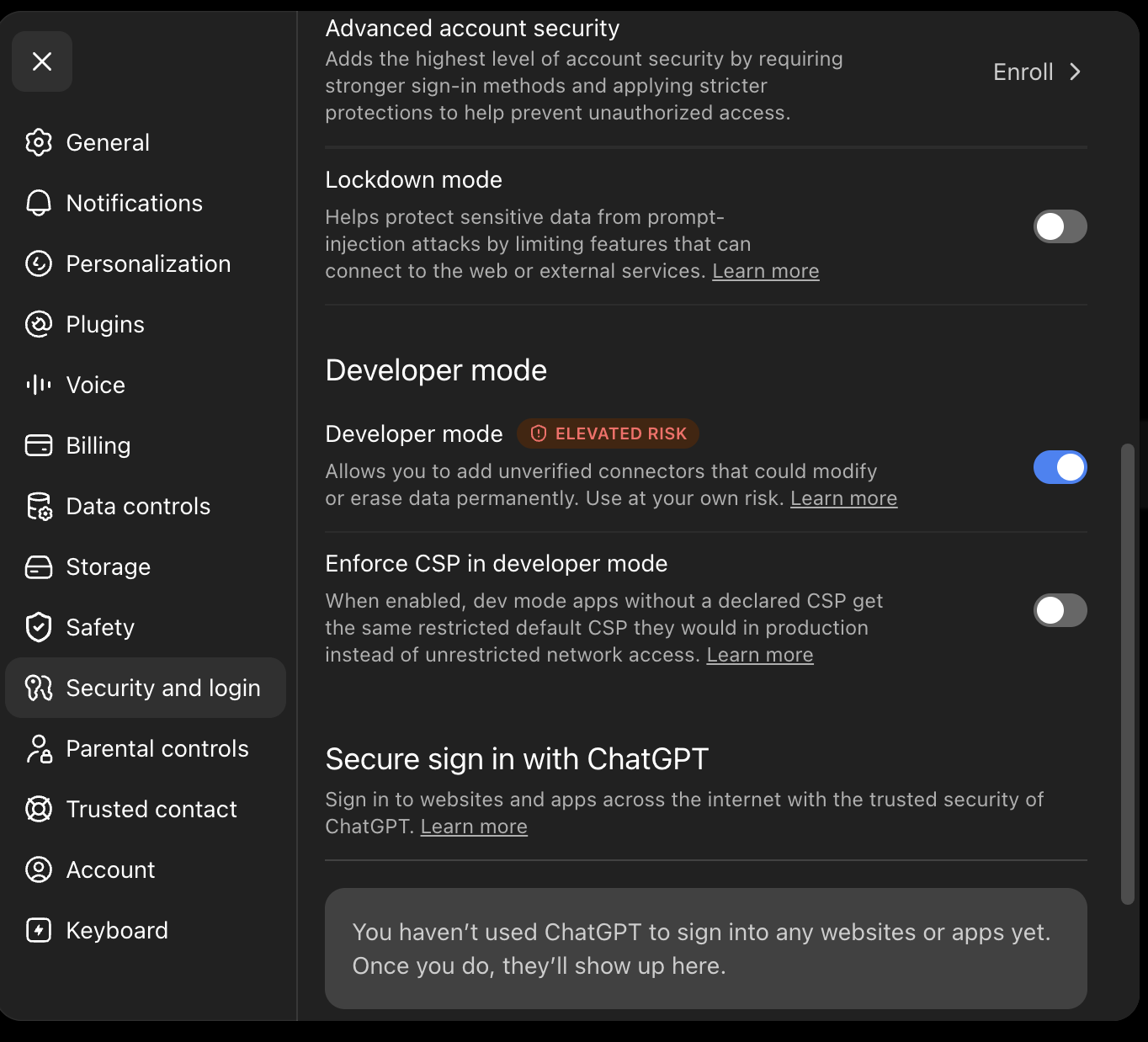
Creating a custom app requires developer mode, which is off by default. Turn it on first:
- Open Settings from your workspace menu.
- Go to the Plugins tab and open Advanced settings.
- Switch Developer mode on.
- Refresh the page. The + / Create button will now appear on the Plugins page.
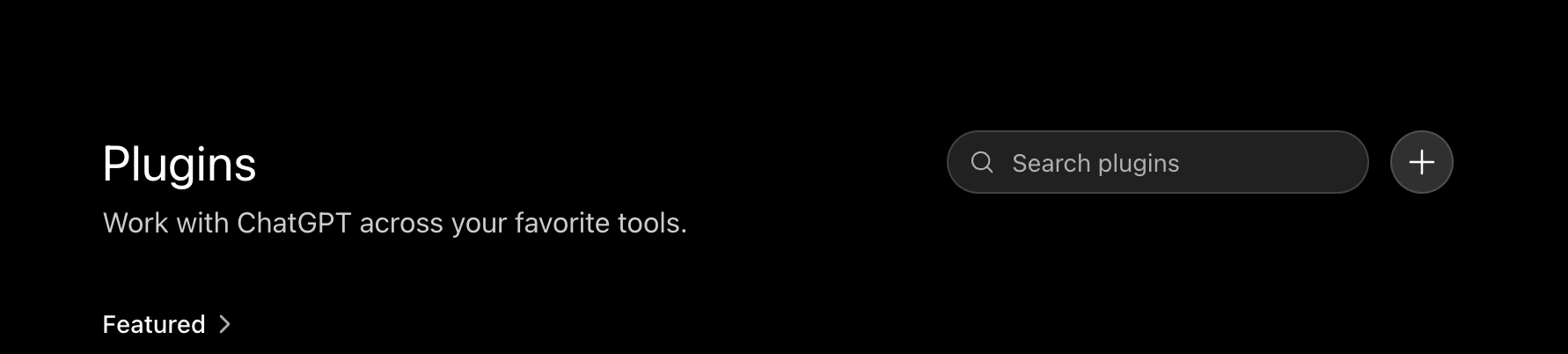
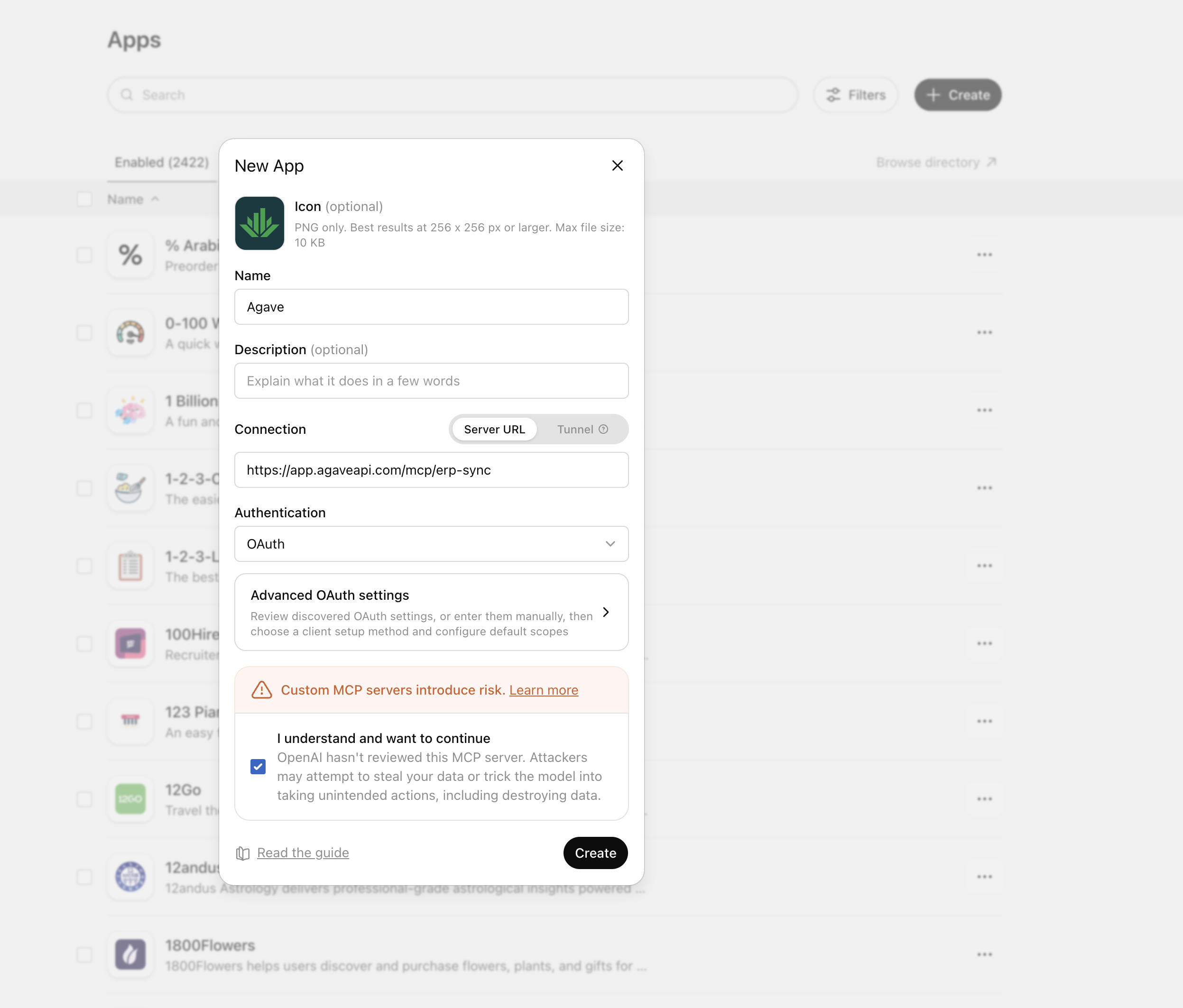
On the Plugins page, press Create to open the New App dialog, then fill it in:
- Icon: upload the Agave logo (PNG). You can download it here: logo.
- Name: enter
Agave. - Connection: leave this on Server URL and enter
https://app.agaveapi.com/mcp/erp-sync. - Authentication: select OAuth.
- Check I understand and want to continue, then press Create.
2. Open Settings → Plugins
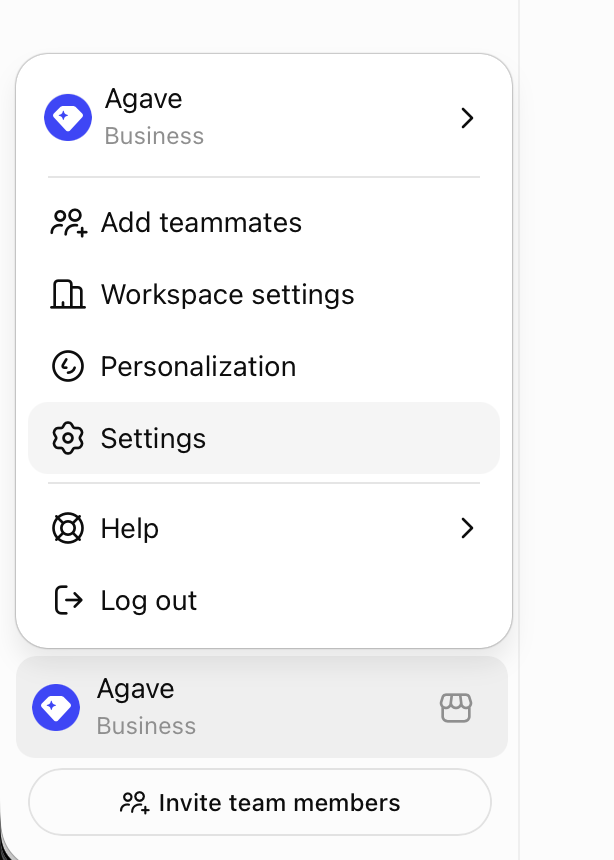
Open your workspace menu and click Settings.
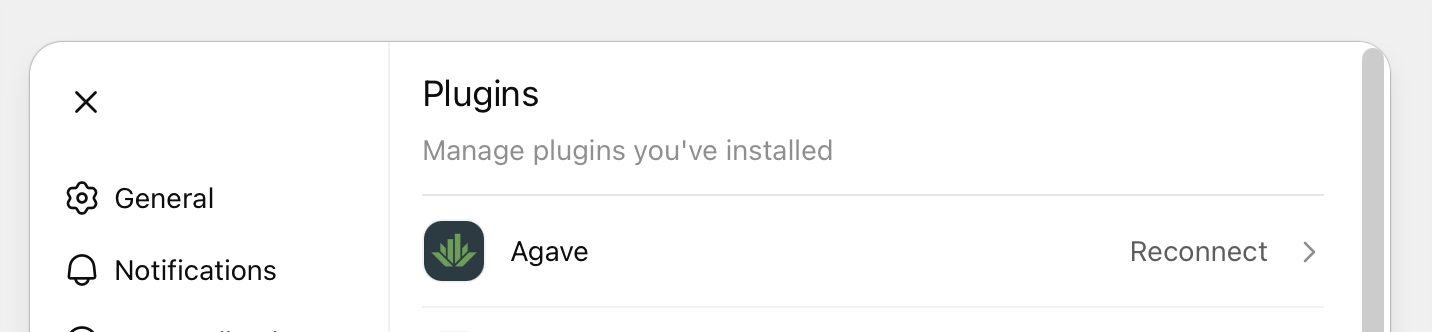
Go to the Plugins tab, where you'll see the Agave app you just created.
3. Connect Agave
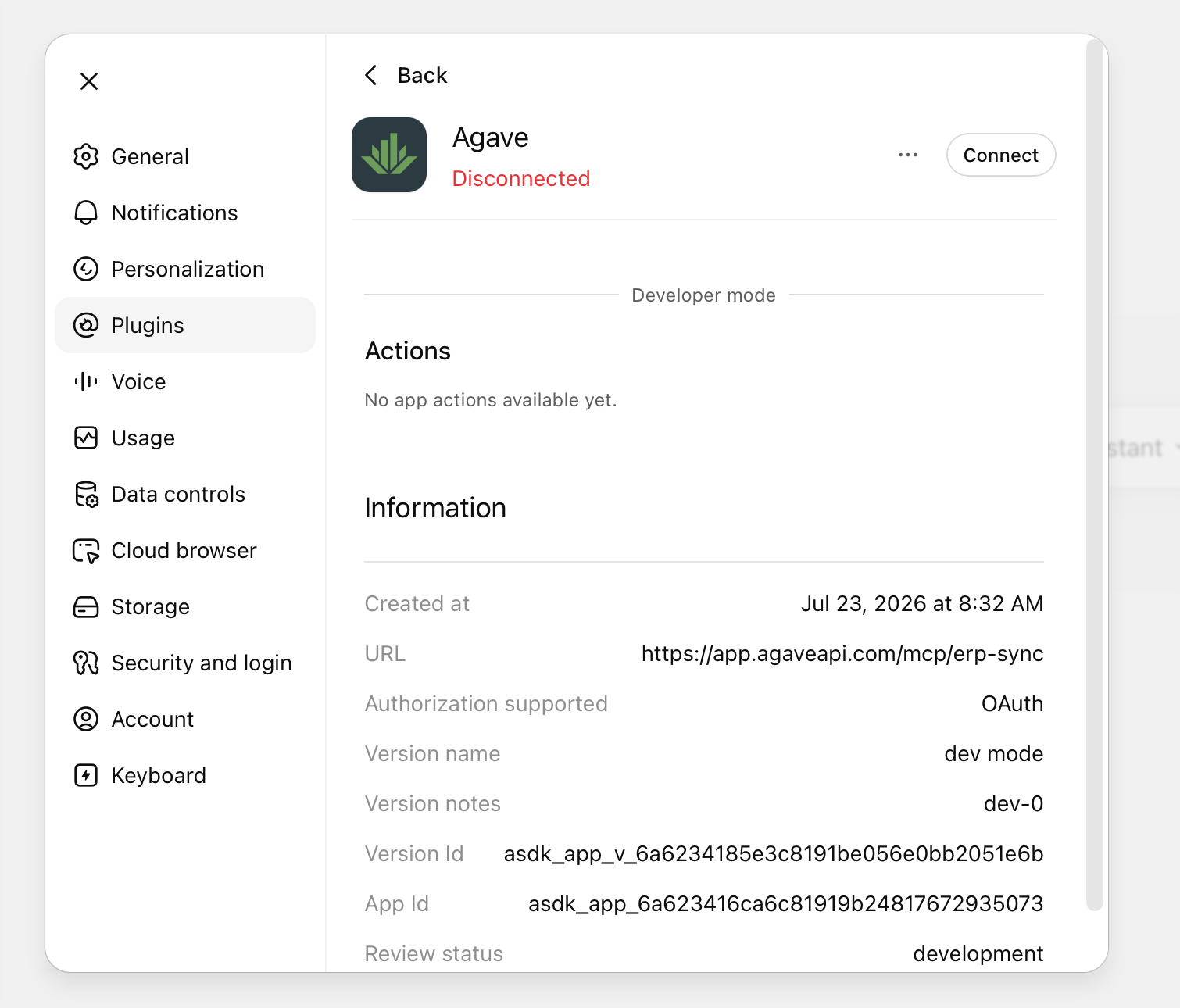
Open the Agave app. It will show as Disconnected. Press Connect.
Press Sign in with Agave.
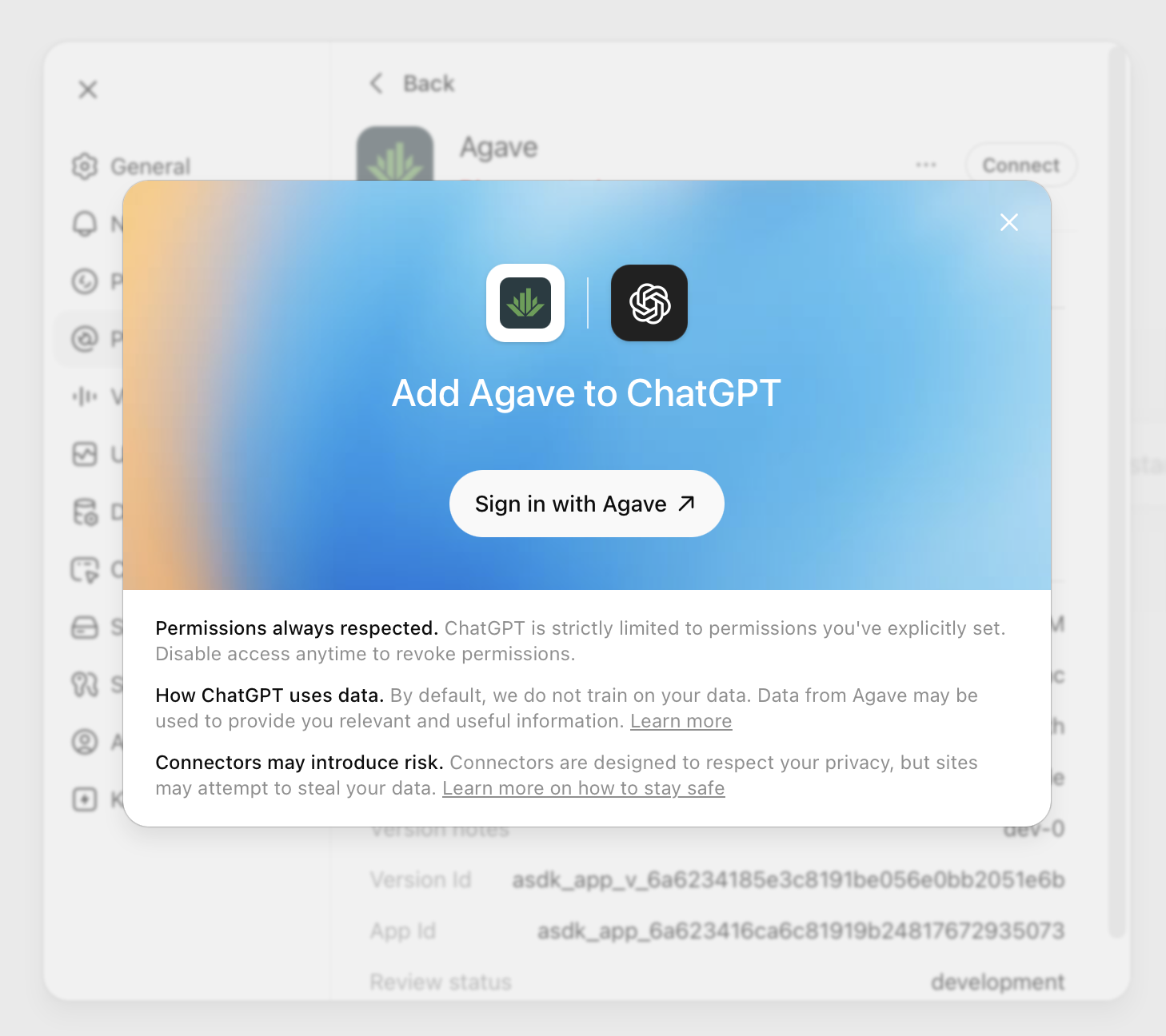
The first time you connect, you'll need to log into Agave in the same browser window you're using for ChatGPT. In other words, the Agave website must be open in a separate tab for authentication to work.
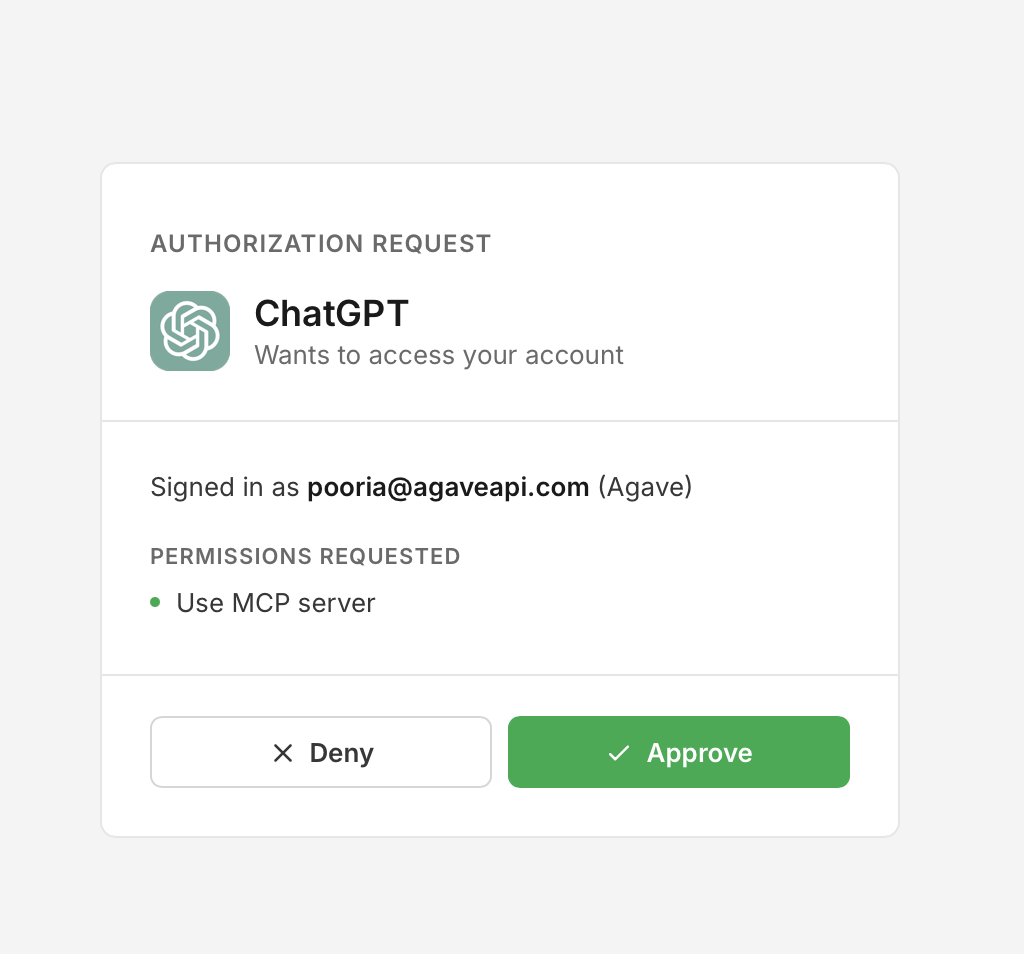
You'll be prompted to authorize ChatGPT. Confirm you're signed in with your Agave account, then press Approve to grant read-only access.
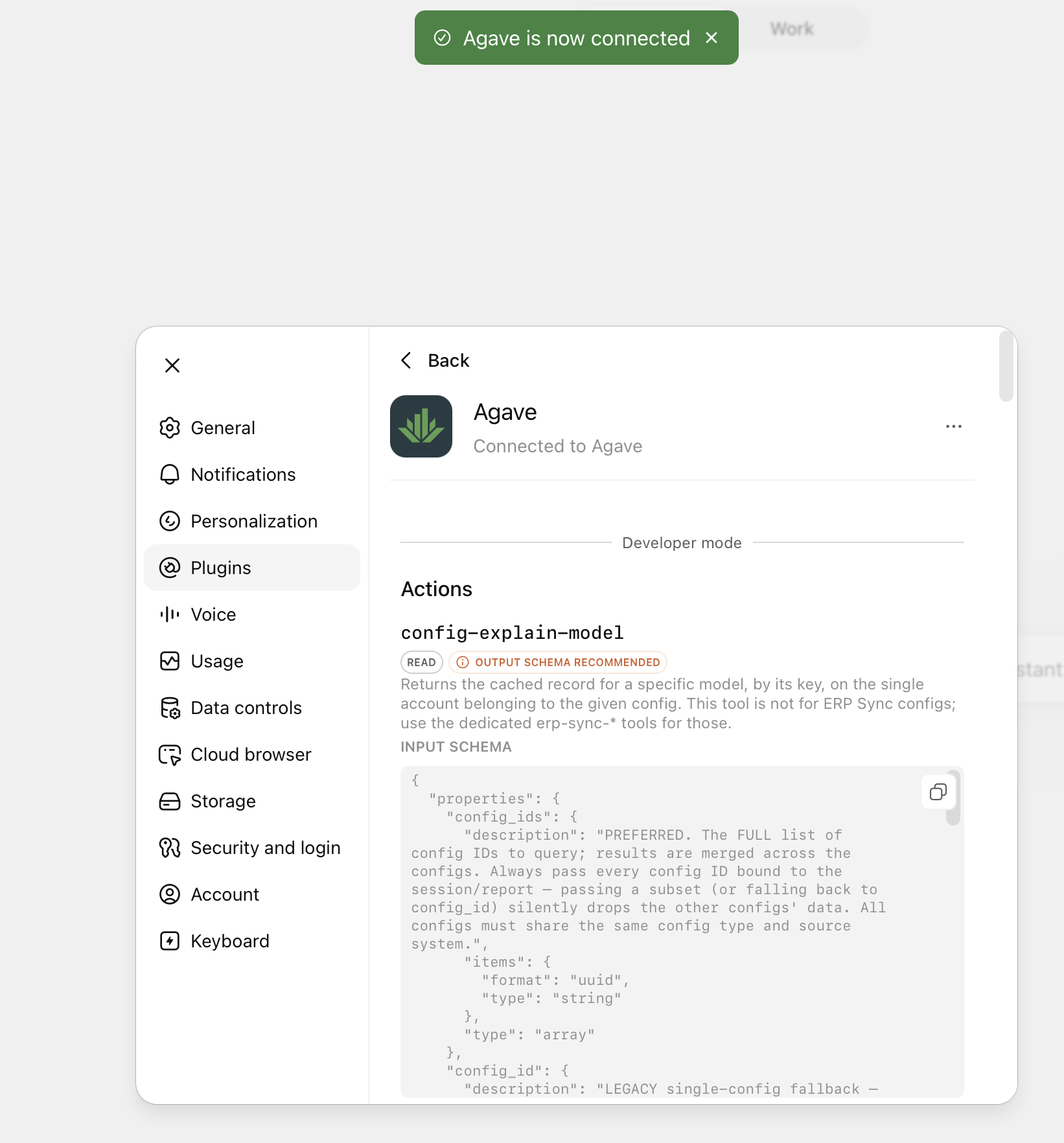
Once connected, you'll see Agave is now connected, and the available tools (the actions Agave can perform against your data) will be listed under the app.
The tools listed depend on your team's Config types shown in MCP setting — see MCP settings. If a config type isn't selected there, its tools won't appear in ChatGPT.
4. Publish to your workspace (admins only)
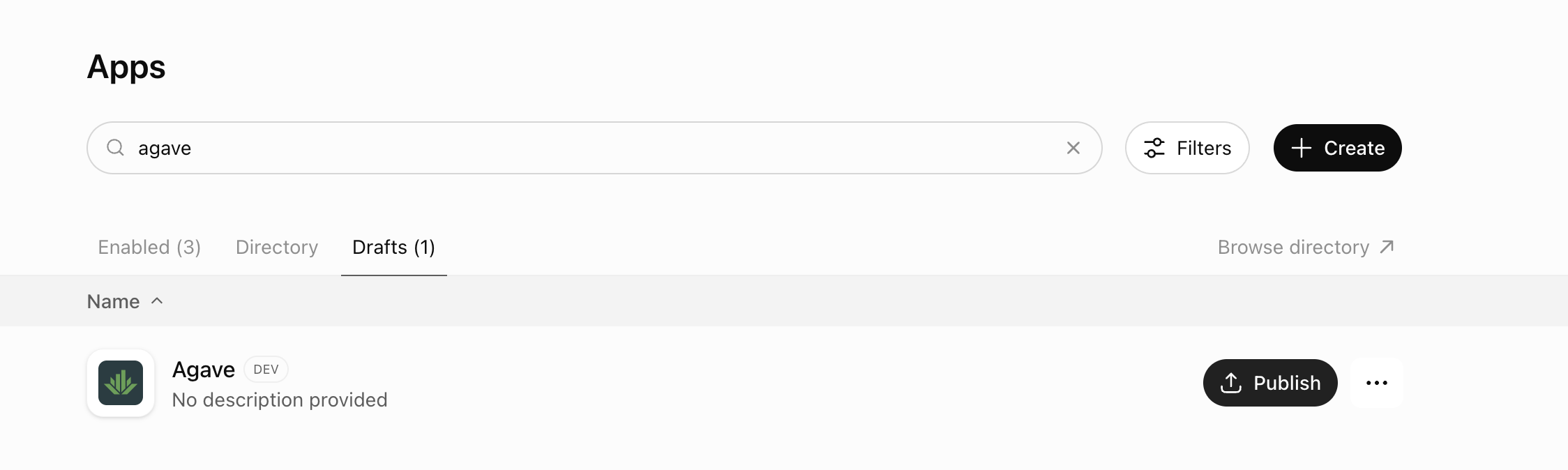
If you're an admin setting Agave up for your team, go back to the Plugins page. The Agave app will appear under Drafts marked DEV. Press Publish.
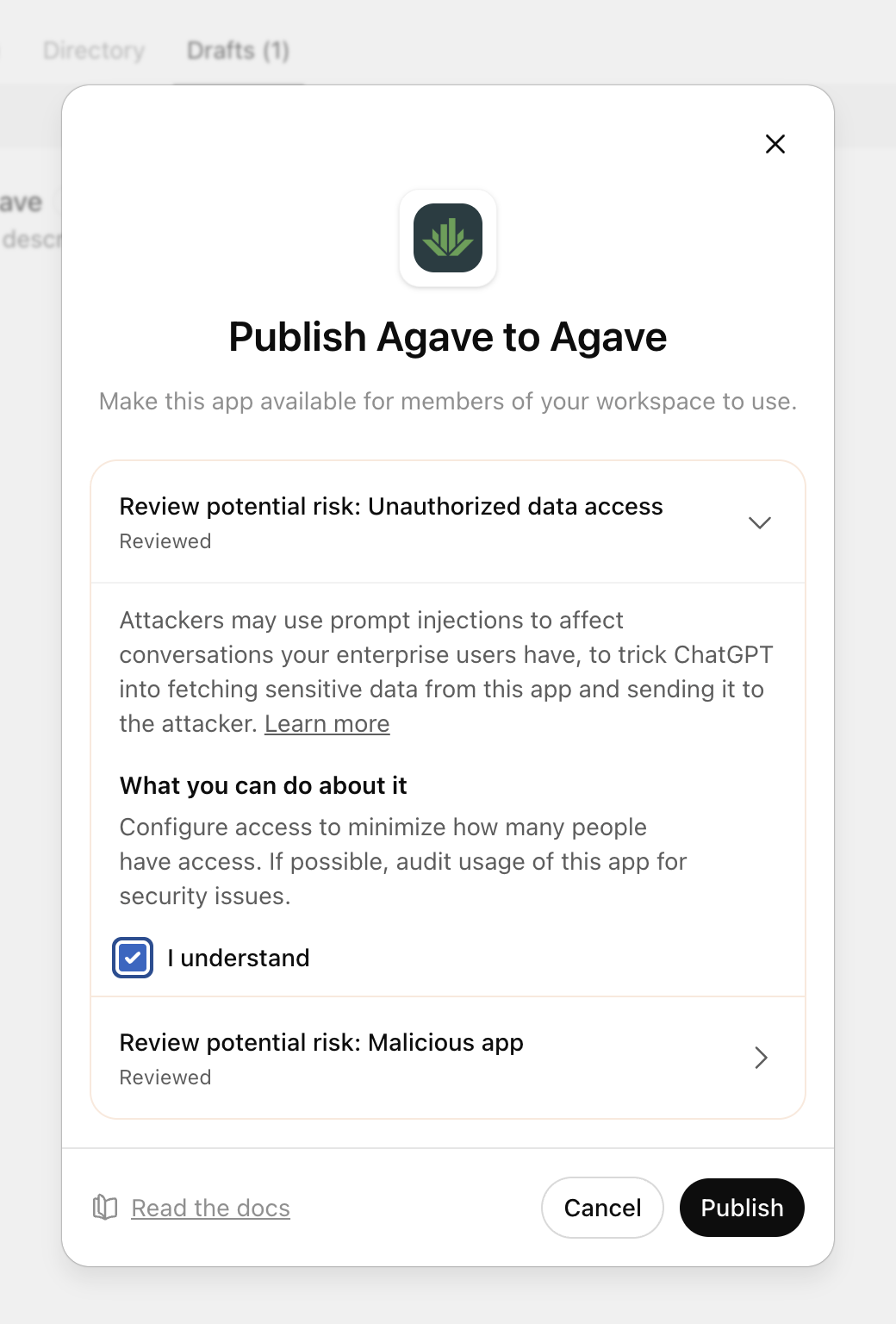
Review the risk notices, check I understand, then press Publish to make Agave available to everyone in your workspace.
5. Use Agave in a chat
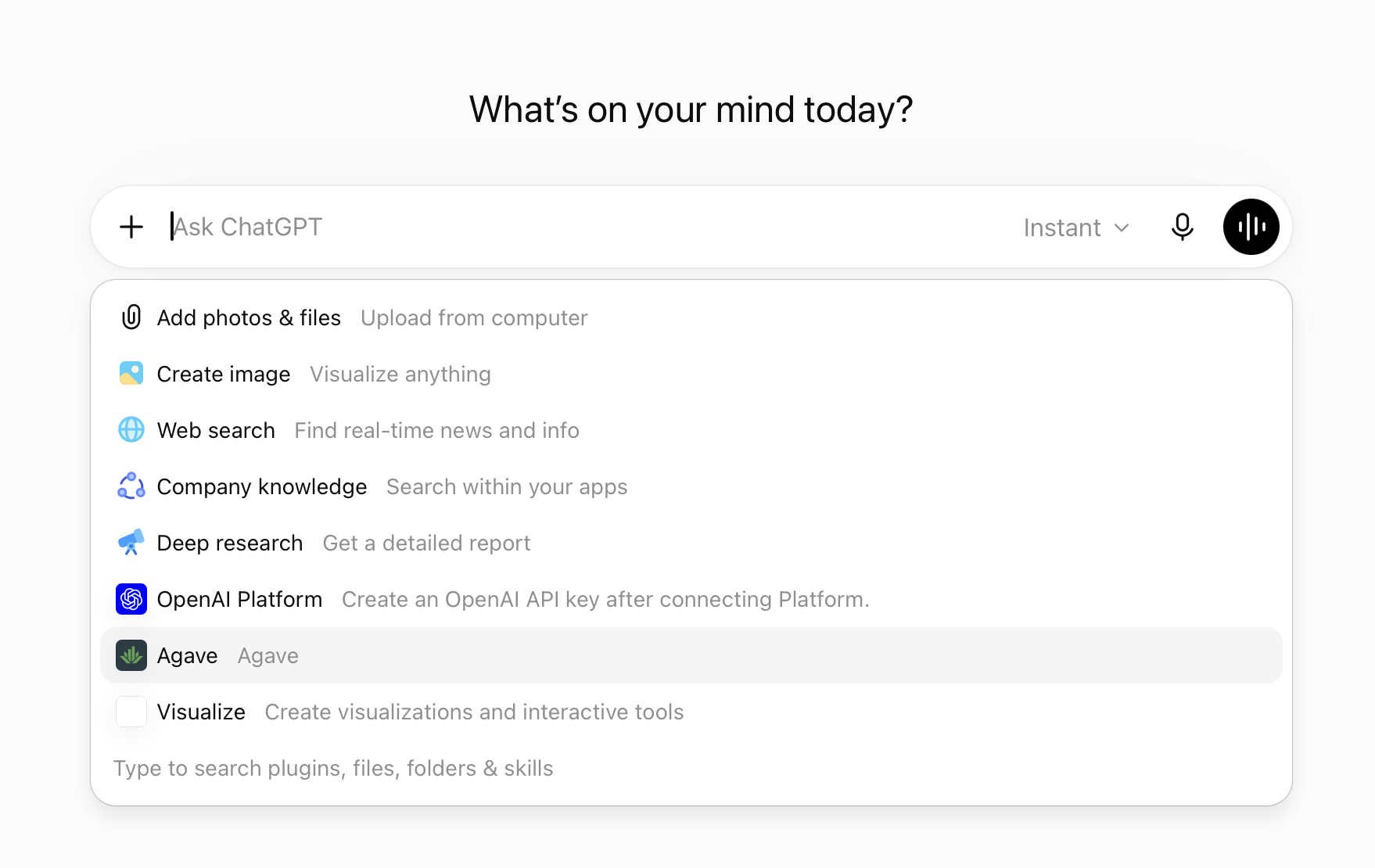
A newly added app won't show up in chats you already have open. Refresh the page (or reload any open ChatGPT tabs) after adding Agave — otherwise it won't appear in the composer menu.
In any chat, press the + button in the composer and select Agave. ChatGPT will now use your Agave data to answer questions and build reports.
Getting better results
To make ChatGPT's responses more accurate, add instructions that guide how it works with your data. Here's a sample prompt you can use:
When performing any calculations, always write and execute code — never calculate mentally. LLM arithmetic is unreliable, and these are financial statements where precision is non-negotiable. Every number in the output must come from executed code. Always resolve identifiers to human-readable names. Never return raw UUIDs, "Unknown", "Undefined", or empty strings in any output including dashboards — every field must contain its actual name or descriptive text.
You can also add instructions that help ChatGPT understand the nuances of your business. For example:
Prime contracts ending with X are not yet awarded; don't include them.
Jobs starting with 30–39 are HVAC, 40–49 are plumbing, and 50–59 are electrical.
What browsers and devices are supported?
ChatGPT works in any modern web browser (Chrome, Firefox, Safari, Edge) on desktop or mobile. For the best experience building dashboards, we recommend using a desktop browser.