Settings
The Settings area is where you connect your data, choose what Agave AI can use, and shape how Agnes interprets and presents your reports. It has two parts: Configuration and Customization.
Configuration
Before Agave AI can build reports, it needs to know where your data lives and which records it's allowed to use. This walks through the four steps to get a configuration up and running.
Step 1: Add a configuration
The first step is to add a configuration. A configuration represents a single company within your source system. A source system is either a Project Management system or an accounting system.
Give the configuration a Name and select the Account it should connect to, then save.
Connecting to your source system
For instructions on connecting to each source system, see the implementation guide specific to your system:
- Acumatica
- Autodesk Build
- CMiC
- ComputerEase
- Foundation
- Procore
- QuickBooks Desktop
- QuickBooks Online
- Sage 100 Contractor
- Sage 300 CRE
- Sage Intacct
- Spectrum
- Vista
If you're already a Sync customer, this step may not be necessary — unless you're looking to retrieve records that only exist in your accounting system.
Step 2: Enable data models
The second step is to select which data models you'd like to enable (for example, AP Invoice, Project, or Ledger Account). Enabling these record types exposes them for use in the Large Language Models (LLMs) that power Agave AI.
In other words, only the record types you enable here are available to Agave AI when it answers questions and builds reports.
The summary table lists every record type your configuration supports, with the enabled ones first and the rest below — so you can see at a glance what else is available to turn on.
You can work with your Agave Account Manager to apply filters to the record types you enable — for example, limiting AP Invoices to a specific type. This keeps Agave AI focused on the records that matter to you.
Step 3: The cache repopulation cadence
Agave AI automatically refreshes your data behind the scenes on a cache repopulation cadence. By default, each enabled record type refreshes daily. The cadence is managed by Agave — if you need your data refreshed more (or less) often, contact your Agave Account Manager.
The benefit of an automatic cadence is that your reports are ready with recent data, without anyone having to trigger a refresh each time.
FAQ: Why not just refresh hourly?
It depends on how much data you have and how fresh you need it to be. If you have a large amount of data, frequent refreshes can:
- Slow down your other refreshes,
- Put a lot of pressure on your source system, and
- Cause you to hit your source system's rate limits.
For most teams, a less frequent cadence (such as daily) strikes the right balance between freshness and performance. Your Agave Account Manager can help you choose the right cadence.
Step 4: Load records
The final step is to load your records so Agave AI has data to work with.
You have two options:
- Load a single record type — select the record type from the dropdown arrow next to Fetch Latest Data, and it will load directly.
- Load everything — press Fetch Latest Data to load all record types at once.
Once your records are loaded, you're ready to start building reports with Agave AI.
Customization
The Customization settings let you shape how Agnes — Agave's AI — understands your business and how it presents the reports it builds. Thoughtful customization helps Agnes return answers that match your company's terminology, expectations, and brand.
Most Customization settings are team-wide — they apply to reports anyone on your team generates. You can also layer your own personal settings on top (see Custom user settings below). Press Save to apply changes, and use View history to see past values of each setting.
System prompt
Under System prompt, you can configure how Agnes interprets your company's data and terminology. Think of it as the standing instructions Agnes follows on every request.
Here are a few examples of what you might add:
1. Detail on your role
Giving Agnes context about who you are helps it tailor its answers. For example:
I am the CFO of a $50 million General Contractor.
2. Instructions for how to return data
You can set expectations for how results should be calculated and formatted. For example:
When performing any calculations, always write and execute a Python or bash script — never calculate mentally. LLM arithmetic is unreliable, and these are financial statements where precision is non-negotiable. Every number in the output must come from executed code. Always resolve identifiers to human-readable names. Never return raw UUIDs, "Unknown", "Undefined", or empty strings in any output including dashboards — every field must contain its actual name or descriptive text.
3. Details that capture the nuances of your business
Agnes can't know your internal conventions unless you tell it. Spelling out these rules helps it interpret your data correctly. For example:
Prime contracts ending with X are not yet awarded. Jobs starting with 30–39 are HVAC, 40–49 are plumbing, and 50–59 are electrical.
Dashboard styling
Under Dashboard styling, you can control the visual style Agnes applies when building reports. This is a great place to apply your company's branding so dashboards look consistent and professional. Be specific — include HTML color codes if possible. For example:
Can you brand all dashboards with the logo and colors of this website? https://useagave.com/
Company logo
Under Company logo, upload your logo once and it's added to the top-right corner of every report your team generates. Use Replace logo to swap it, or Remove to take it off.
This is more dependable than asking for a logo in your dashboard styling prompt. The logo is applied when the report is served rather than built into the report itself, so it appears on reports you generated before uploading it, not only on new ones.
Custom user settings
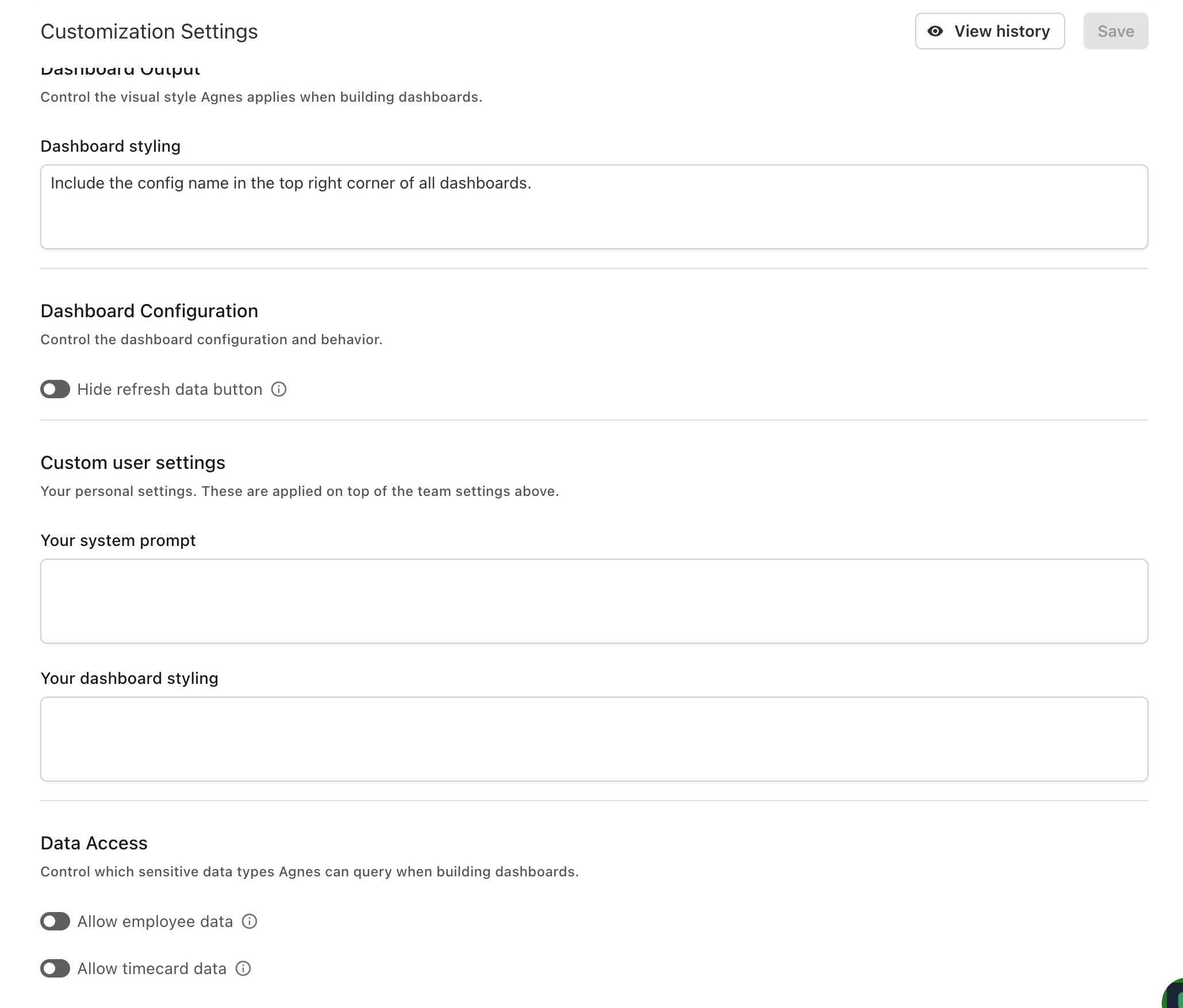
In addition to the team-wide settings above, you have two personal settings that apply only to reports you generate, layered on top of the team settings:
- Your system prompt — personal context Agnes applies on top of the company system prompt (for example, your role and the projects you focus on).
- Your dashboard styling — personal visual style preferences applied on top of the company dashboard styling.
Dashboard configuration
- Hide refresh data button — hides the Refresh Data button on dashboards so viewers can't repopulate the cache. This is on by default; turn it off if you want editors to refresh a report's data on demand.
Data access
Two settings control whether Agnes can query sensitive record types when building dashboards. Both are off by default:
- Allow employee data — Employee records may contain sensitive HR information.
- Allow timecard data — Timecard Entry records may contain sensitive payroll information.
While a toggle is off, Agnes blocks any request involving that data, and the dashboard will say the data isn't available.
For finer control — permitting or withholding each record type per Role, rather than for the whole team — see Roles & Permissions.
MCP
The MCP section controls what Agave's MCP connection can access — the connection you use when working with your Agave data in Claude or ChatGPT (see Agave AI in Claude and Agave AI in ChatGPT).
- Config types shown in MCP — select which config types (such as Erp Sync or Ap Automation) are listed when browsing configs through the MCP connection. The dropdown only offers the config types your team actually has. Leave it empty to show all.
This is a team-wide setting. When a config type isn't selected, its MCP tools are hidden entirely — Claude won't see them in the connector's tool list, and config listings only return configs of the selected types. Use it to keep Claude focused when your team runs multiple Agave products but only wants one of them exposed to AI.