Best Practices
Create your first Reports
Not sure where to begin? Here are a few approaches for your first reports.
1. Ask about record types you'd like to learn more about
Start by exploring the data you already work with. Some popular places to begin:
- WIP Report
- Job Performance by a logical grouping (for example, by Department)
- Cross-project dashboards
- Record-specific dashboards (for example, Subcontracts)
- Underbilling Tracker
2. Upload an existing report
If you already have a report you like, you can give it to Agnes as a starting point. Upload a PDF, spreadsheet, or screenshot of an existing report — this could be a canned or custom report from your ERP, an internal monthly project health dashboard, or any custom report you've previously built.
To upload, select the file icon in the Edit view and add your attachment there.
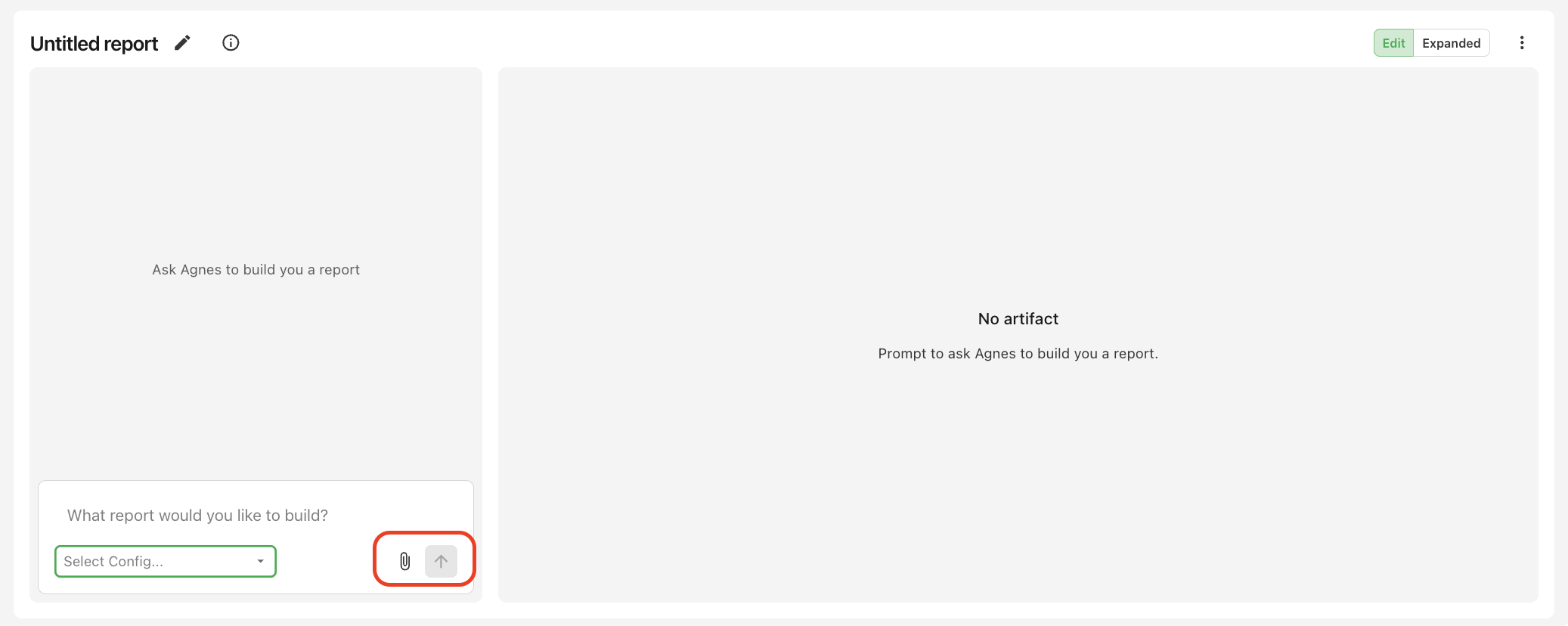
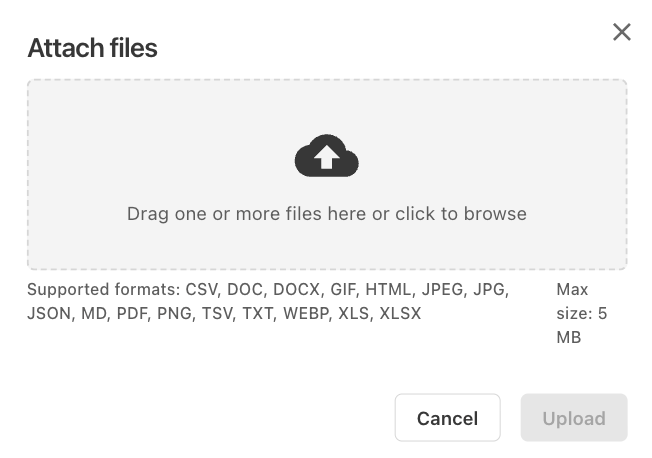
Once attached, Agnes will use the file to create a live report using data from your source system.
How should I structure my queries for best results?
The more specific and detailed your prompt, the better Agnes can deliver what you're looking for. The table below shows common ways to sharpen a request.
| Guidance | ❌ Avoid | ✅ Recommended |
|---|---|---|
| Be specific about what you want to see. | "Show me my data." | "Show me a breakdown of project costs by region for the past 6 months." |
| For reports, describe metrics, filters, and time ranges. | "Make me a Projects dashboard." | "Build a dashboard showing open vs. closed projects by status with a date filter." |
| Refine instead of restarting when results aren't right. | "That's wrong, try again." | "The totals look off—can you exclude 'draft' status projects and recalculate?" |
| For comparisons, specify periods and metrics. | "How are my projects doing?" | "Compare total project costs Q1 vs. Q2 2025 across all regions." |
| Reference specific projects, vendors, or PMs by name. | "Show me the problem jobs." | "Show me jobs where actuals exceed budget by more than 10% for PM Jane Smith." |
| Specify which date field to filter on. | "Show me March invoices." | "Show me invoices with issue date in March 2026." |
| Tell Agnes the format you want the output in. | "Show me recent payments." | "List the 20 most recent AP payments as a table with vendor, amount, check number, and date." |
Report Versions
Each time you re-prompt a report, Agnes creates a new version. By default, Agave shows the latest version of the report. This means your most recent edits are always front and center.
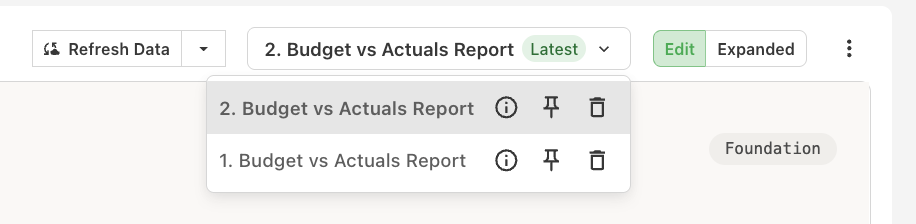
You have a few options for managing versions:
- Pin or set an older version as the default. If you prefer an earlier version, you can pin it so it stays in view — useful when you want to keep using a version you like until you've created an updated one that's even better. The default version is also what Viewers see when the report is shared.
- Archive versions you no longer need. Archiving hides a version from the version list while keeping it recoverable — you can unarchive it at any time. (Archiving applies to individual versions, not whole reports; a report itself can only be deleted, permanently, by its Owner.)
For the full details — including how to branch from an older version — see Features → Versions.