Agave AI in Claude
You can connect Agave AI to Claude, giving Claude read-only access to your Project Management and ERP data so you can ask questions and build reports directly in Claude.
What is Claude.ai?
Claude.ai is a web-based AI assistant made by Anthropic, similar to ChatGPT or Microsoft Copilot. It provides the conversational interface you use to interact with your data through Agave MCP.
When to use Agave AI: Claude vs. Agave AI reports
Agave AI gives you two ways to work with your data. Here's how to know which one to use.
Quick answer
- Agave AI reports: for dashboards your team will use again and again.
- Agave in Claude: for one-off questions, exploration, and working with outside files.
Most people use both. Start in Claude to figure out what you want, then move it to Agave AI reports once it's ready for your team.
Use Agave AI reports when you want to:
- Build a recurring report. Monthly WIP reviews, weekly underbilling trackers, daily change order checks — anything you'll come back to more than once belongs here.
- Share with your team. Agave AI reports include user permissions, shareable links, and folder organization. Send your CFO a dashboard link or give your PMs read-only access to a project view.
- See live, refreshed data. Open a dashboard anytime and see today's numbers — no need to re-run anything.
- Use a polished, interactive view. Drill-downs, filters, and branded styling all work in Agave AI reports. It's built for clean, repeatable use.
Use Agave in Claude when you want to:
- Ask a one-off question. "How many voided AP payments did we have last month?" "Which vendors have we paid the most this quarter?" If you're investigating something specific and don't need it again, ask Claude.
- Work with outside files. Upload a spreadsheet, a PDF contract, or a Power BI export. Claude can combine those with your live Agave data — Agave AI reports can't do that.
- Explore conversationally. Ask a question, then follow up with another: "Show me jobs underperforming." → "Why is this one off?" → "What are the change orders?" Claude handles the back-and-forth naturally.
- Test ideas before making them permanent. Try out different ways to calculate a metric, and refine a question until it returns what you want. Once it works, move it to Agave AI reports.
The typical workflow
- Ask a question in Claude to explore something.
- Get an answer that's useful enough to want again.
- Move it to Agave AI reports as a permanent dashboard.
- Share with your team, and check it whenever you need it.
At a glance
| If you want to... | Use |
|---|---|
| Run a recurring monthly report | Agave Reports |
| Ask a one-off question | Claude |
| Share a dashboard with your CFO | Agave Reports |
| Reconcile a spreadsheet against your ERP | Agave Reports |
| Build a dashboard for daily reference | Agave Reports |
| Investigate an unexpected number | Claude |
| Distribute a weekly report | Agave Reports |
| Work with a PDF or Excel file | Claude |
How do I connect Claude to Agave?
-
Log in to Claude.ai.
You must be an organization adminAdding a custom connector is an organization-level action, so you need to be an admin of your Claude organization. If you aren't, ask an admin on your team to complete these steps.
-
Go to claude.ai/admin-settings/connectors, or navigate to Settings → Administration → Connectors.
-
Press the + sign, then select Add custom connector.
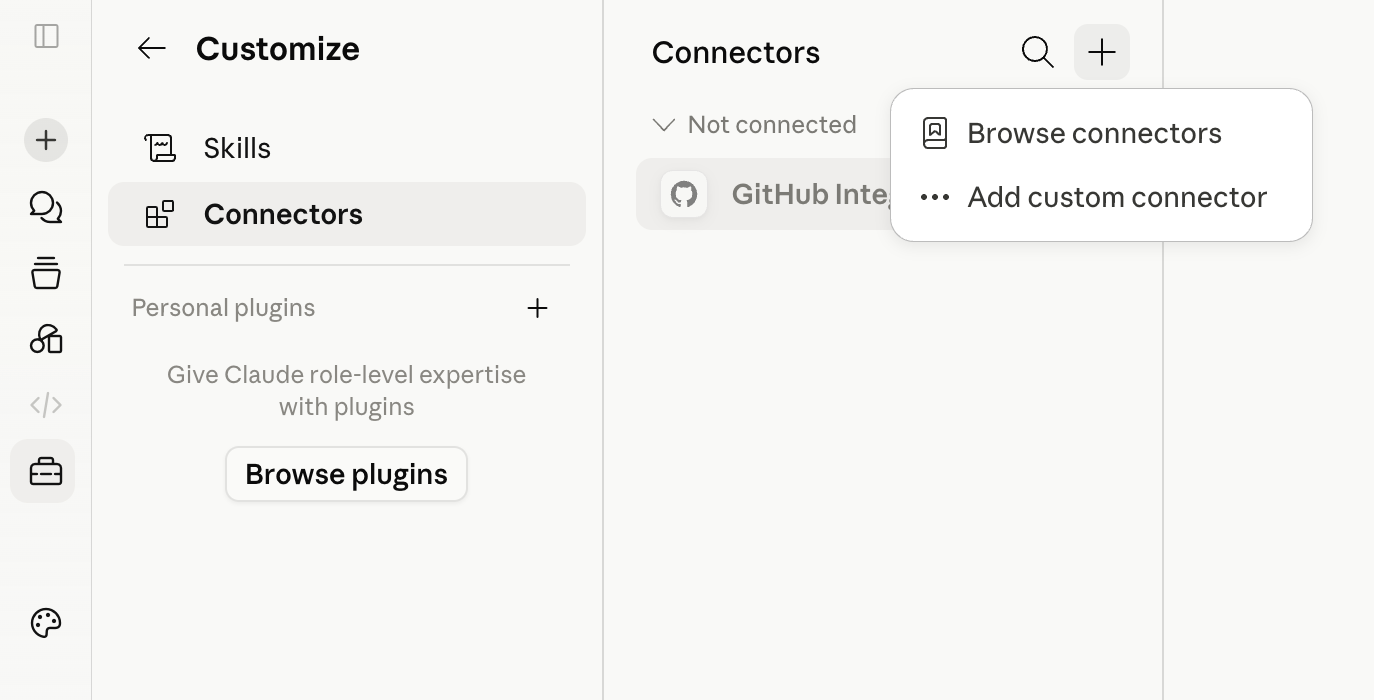
-
Enter Agave as the name and
https://app.agaveapi.com/mcp/erp-syncas the remote MCP URL, then press Add. -
On the Agave connector, press Connect. You'll be prompted to log into Agave, then click Approve to grant Claude read-only access to your Agave account.
Keep Agave open in the same browserThe first time you connect, you'll need to log into Agave in the same browser window you're using for Claude. In other words, the Agave website must be open in a separate tab for authentication to work.
-
Click Configure to see the list of tools (the actions Agave can perform against your data), then select Always Allow.
Which tools appear here?The tools listed depend on your team's Config types shown in MCP setting — see MCP settings. If a config type isn't selected there, its tools won't appear in Claude.
-
Set up a profile at claude.ai/settings/general to make Claude's responses more accurate. You can add prompts here to guide how Claude works with your data.
-
Here's a sample prompt you can copy into the preferences section:
When performing any calculations, always write and execute a Python or bash script — never calculate mentally. LLM arithmetic is unreliable, and these are financial statements where precision is non-negotiable. Every number in the output must come from executed code. Always resolve identifiers to human-readable names. Never return raw UUIDs, "Unknown", "Undefined", or empty strings in any output including dashboards — every field must contain its actual name or descriptive text.
-
You can also add instructions that help Claude understand the nuances of your business. For example:
Prime contracts ending with X are not yet awarded; don't include them.
Jobs starting with 30–39 are HVAC, 40–49 are plumbing, and 50–59 are electrical.
-
What browsers and devices are supported?
Claude.ai works in any modern web browser (Chrome, Firefox, Safari, Edge) on desktop or mobile. For the best experience building dashboards, we recommend using a desktop browser.
Why won't my desktop Claude app work / why does it keep erroring?
If the Claude desktop app is throwing errors (for example, failing to open generated JSON files or getting stuck generating), switch to the browser version at claude.ai. The web experience is more stable for dashboard generation, and it's what we test against. We've seen intermittent desktop app issues that resolve immediately in the browser.