Email Forwarding
Much of what matters on a project shows up in email before it shows up anywhere else: a general contractor asking for an updated certificate of insurance, a schedule of values due by a certain date, a schedule change, or early talk of a potential change order. When you forward those emails to Agave, Agave AI can review them and bring the important details into your reports.
To enable this functionality, work with your assigned onboarding contact at Agave.
What can I do with it?
Once Agave is receiving your project correspondence, you can ask Agave AI to use it in your reports. For example:
- A risk flags page that lists every risk raised in email, with its severity, category, deadline and vendor, so your team can review, comment on and resolve each one.
- Risk flags in your WIP report, so project managers see open items like missing compliance documents, potential change orders or schedule changes next to the job's financials.
- Flags for emails that don't match a project yet, so nothing slips through when a sender uses a project name or number Agave can't match.
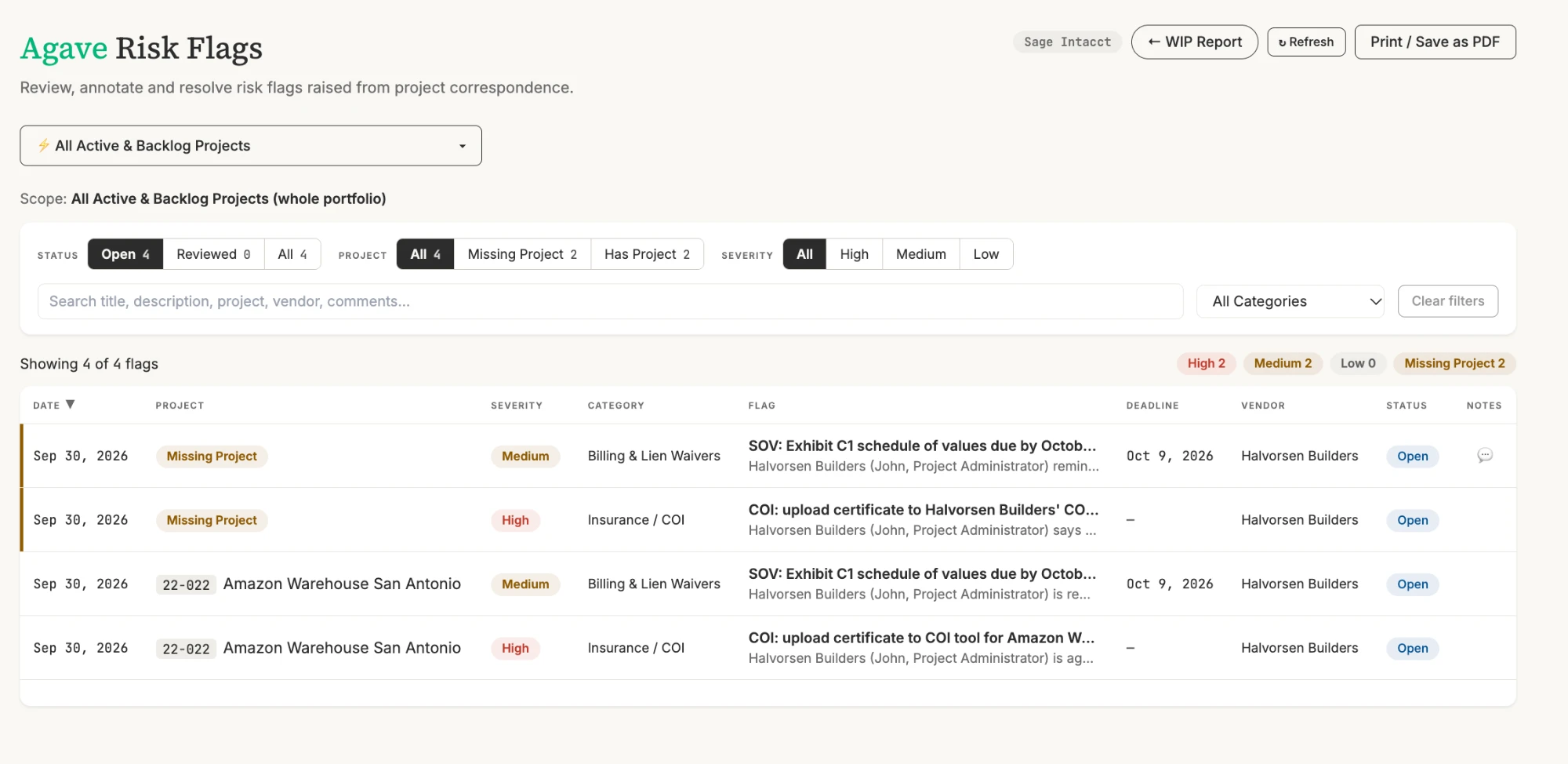
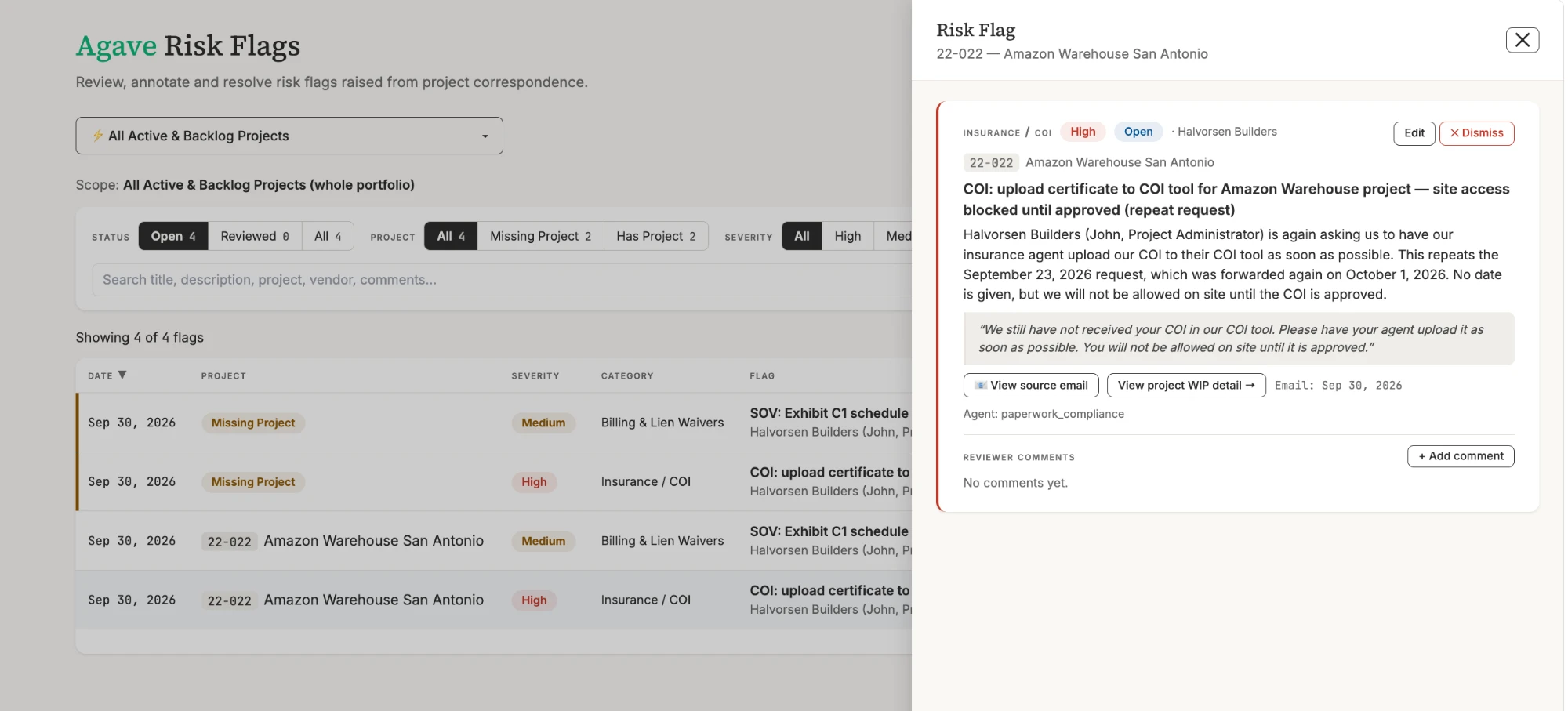
Click any flag to see the details: a summary of the request, a quote from the original email, a link to the source email, and a link to the project's WIP detail. Reviewers can add comments, edit the flag or dismiss it.
How does forwarding work?
You set up a rule in your email system that sends a copy of incoming emails to your company's Agave agents address. Your Agave onboarding contact will give you this address. It looks like yourcompany-agents@mail.agaveapi.com.
The rule only copies emails that:
- are sent to the inboxes you choose (for example, your AP inbox or the project managers who correspond with GCs and vendors), and
- come from outside your organization.
Your team still receives every email exactly as before. Internal emails are never copied to Agave.
Set up forwarding in Microsoft 365
You'll need Exchange admin access in Microsoft 365, the list of inboxes that should be forwarded, and your Agave agents address.
Use an Exchange mail flow rule, as described below, rather than an Outlook mailbox rule. Mailbox rules can't check whether a sender is external, and Microsoft 365 usually blocks them from forwarding outside your organization.
Step 1: Create the mail flow rule
- Go to admin.exchange.microsoft.com and open Mail flow > Rules.
- Click + Add a rule > Create a new rule.
- For Name, enter
External to Agave agents. - Under Apply this rule if, select The recipient > is this person, add each inbox that should be forwarded, and save.
- Click + next to that condition to add an And line.
- Under And, select The sender > is external/internal > Outside the organization, and save.
- Under Do the following, select Add recipients > to the Bcc box, enter your Agave agents address, and save.
- Leave Except if blank.
- Click Next.
When you're done, the conditions page should look like this:
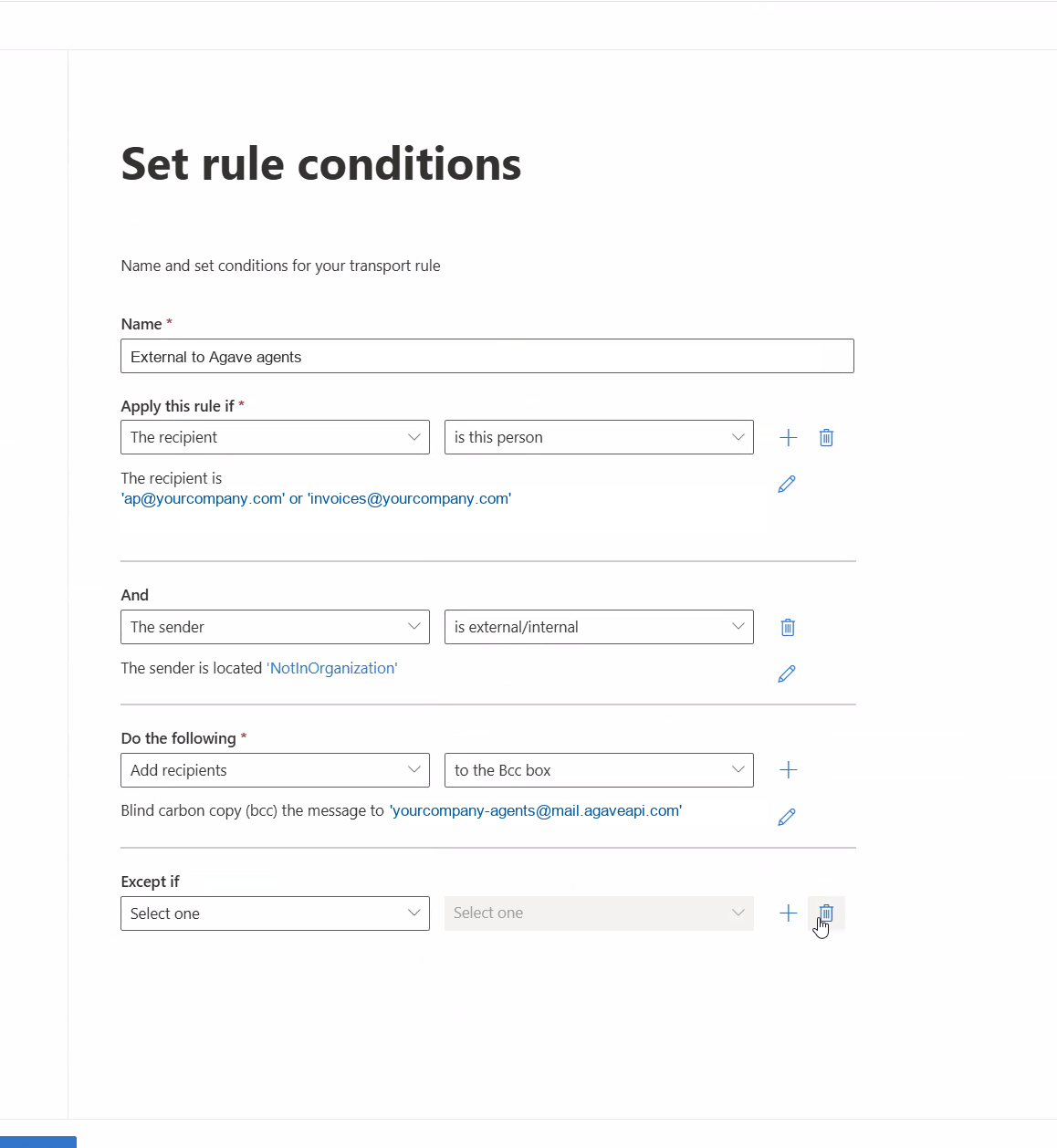
Choose Add recipients > to the Bcc box. Don't use Redirect the message to, because it removes the original recipient and your team would stop receiving those emails.
Step 2: Review the rule settings and turn the rule on
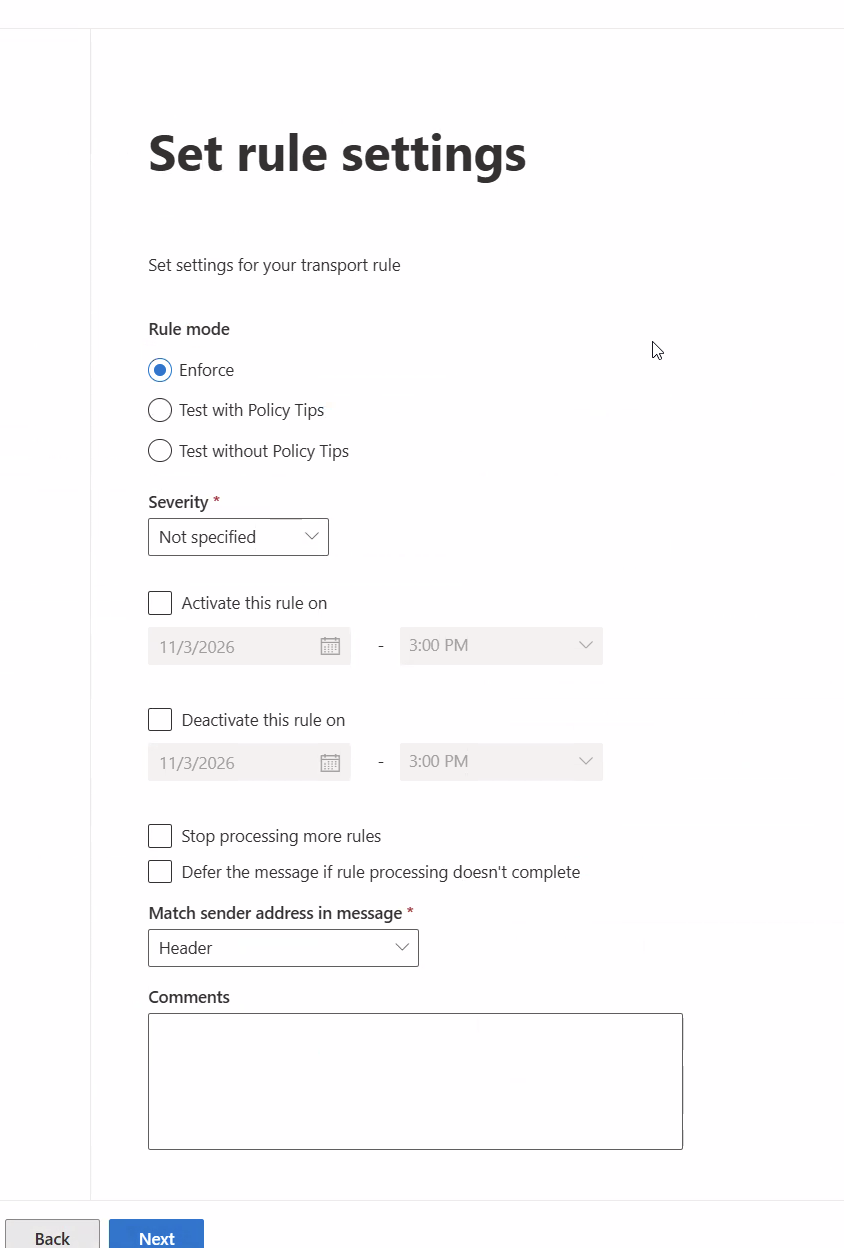
On the Set rule settings page, keep the defaults:
| Setting | Value |
|---|---|
| Rule mode | Enforce |
| Severity | Not specified |
| Activate / Deactivate this rule on | Unchecked |
| Stop processing more rules | Unchecked |
| Defer the message if rule processing doesn't complete | Unchecked |
| Match sender address in message | Header |
| Comments | Optional, for example "Bcc external emails for the AP inbox to Agave agents" |
- Click Next, review the rule, then click Finish.
- Back on the Rules list, the new rule shows as Disabled. Select it and turn on Enable or disable rule.
Step 3: Test it
Allow up to 30 minutes for the rule to take effect, then run two tests:
| Test | Expected result |
|---|---|
| Send an email from a personal address (for example, Gmail) to one of the selected inboxes | It arrives in the inbox and is received by Agave |
| Send an email from an internal address to one of the selected inboxes | It arrives in the inbox only and is not sent to Agave |
Let your Agave onboarding contact know when the rule is on so they can confirm emails are coming through.
Good to know
- CC counts as a recipient. An external email that only CCs one of the selected inboxes is also copied to Agave.
- No duplicates. An external email sent to several of the selected inboxes at once is copied to Agave once.
- If the external test bounces with a message that external forwarding isn't allowed, check the outbound anti-spam policy in Microsoft Defender under Email & collaboration > Policies & rules > Threat policies > Anti-spam.