Roles & Permissions
Your Agave Account Manager can turn on Roles & Permissions, which give you finer control over the information in the systems you connect.
What kinds of Roles can I create?
You can create any Role you like. A Role is simply a group of people who share the same access — for example an Executive, Controller, Payroll, or Project Manager Role. Each Role has its own Permissions, so everyone sees only what they need to.
What can Permissions control?
For each Role, you can set Permissions that decide whether people can:
- View records — such as Timecard Entries or AP Invoices.
- Edit reports.
- Connect new systems — that is, add Linked Accounts.
How do I set up Roles & Permissions?
-
Go to Roles & Permissions.
-
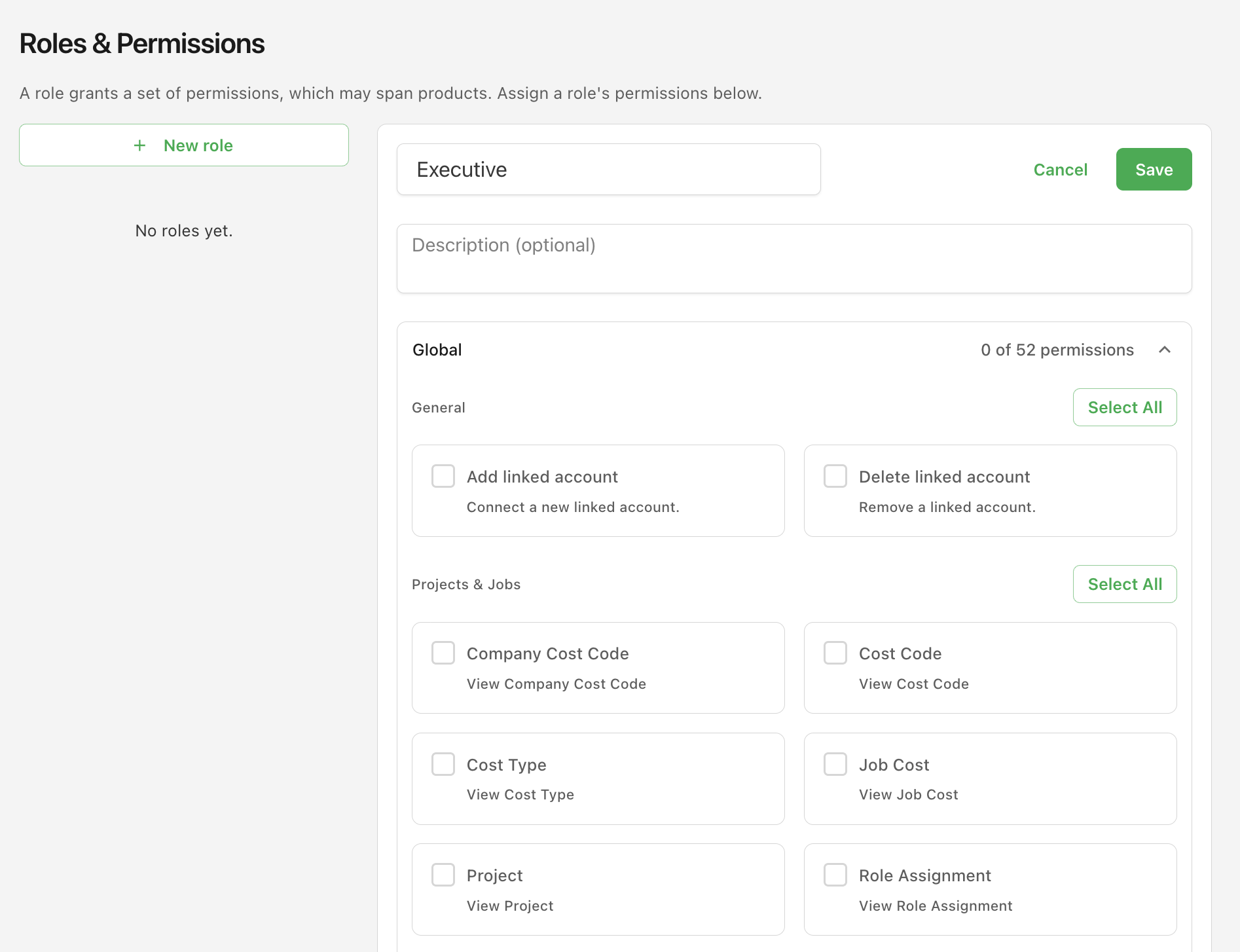
Click New Role.
-
Give the Role a name.
-
Turn on access to the record types this Role should be able to see.
-
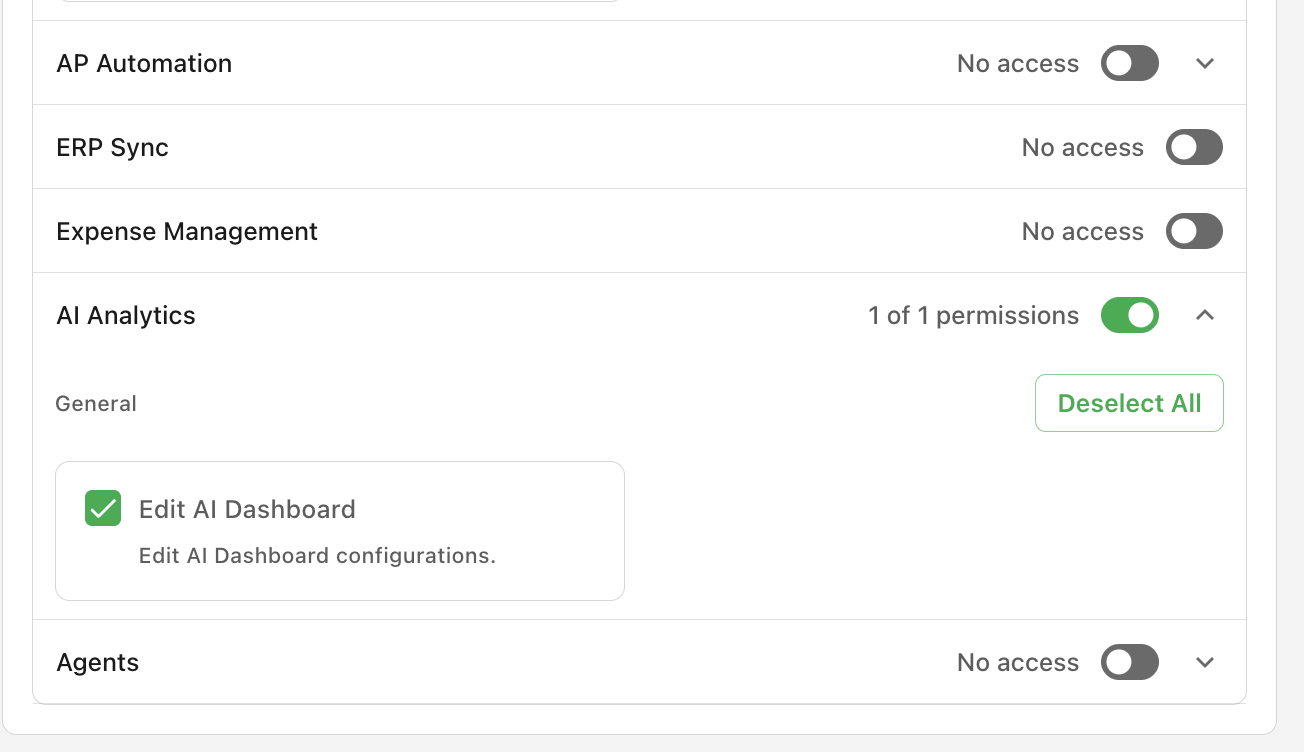
Scroll to the bottom of the page. If you'd like this Role to be able to edit reports, turn on that Permission too.
-
Scroll back to the top and click Save.
Can I limit a Role to certain records?
Yes. On top of choosing which record types a Role can see, your Agave Account Manager can also limit which individual records within a type it can access.
For example, you can ask your Agave Account Manager to limit a Role's access to certain Projects (Jobs) by department, type, or location.
Seats
Your plan includes a set number of AI Analytics seats, in two kinds:
- Power users — people who can create, edit, and delete reports. A power user is anyone whose Role grants the Edit AI Dashboard Permission.
- View only — people who can open reports shared with them and star them.
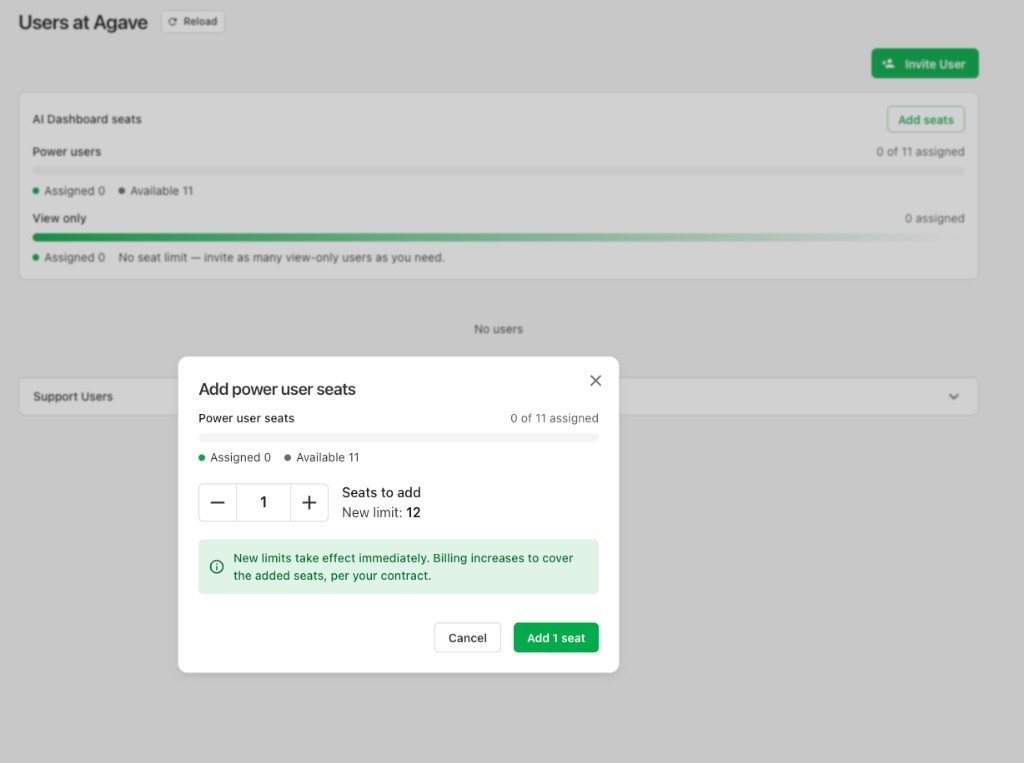
The Users page shows an AI Dashboard seats card with a usage meter for each kind, so you can see how many seats are assigned and how many remain. Many plans leave view-only access uncapped, in which case that meter simply reports no limit.
Admins and owners can raise the power user limit themselves: click Add seats on the card, choose how many to add, and confirm. The new limit takes effect immediately, and billing updates to cover the added seats per your contract. The same dialog appears if inviting someone or assigning a Role would exceed the current limit, so you can add seats and finish the save in one step.
Being over a limit already — after one is lowered, say — never blocks you from removing seats. Decreasing a limit is still managed by Agave; talk to your Account Manager.
