Sharing & Permissions
Reports are private to their creator until shared. You can share with specific teammates, or with your whole team at once, with a role controlling what each person can do. Folders have sharing settings too — see Sharing a folder below.
Two layers of access
Access to Agave AI works in two layers:
- Product access — set by your Agave administrator. Users either have view access (they can open reports shared with them, browse templates, and star reports) or edit access (they can also create reports, prompt Agnes, share, and manage folders and settings).
- Per-report roles — set report by report, in the Share dialog, as described below.
Your plan may cap how many people can hold each level of product access. See Seats.
Report roles
| Viewer | Editor | Owner | |
|---|---|---|---|
| View the report and its versions | ✓ | ✓ | ✓ |
| Star the report (personal) | ✓ | ✓ | ✓ |
| Prompt, edit, and attach files | ✓ | ✓ | |
| Rename, duplicate, move to folder | ✓ | ✓ | |
| Manage versions (pin default, archive) | ✓ | ✓ | |
| Share and change permissions | ✓ | ✓ | |
| Mark or remove Official | ✓ | ||
| Delete the report | ✓ |
The person who creates a report is its Owner. There is one Owner per report, and Editors can never grant a role higher than their own — so ownership can't be transferred by an Editor.
People with Viewer access see the finished report — no chat panel, version dropdown, or edit controls. If a default version is pinned, that's the version they see; otherwise they see the latest completed version.
Sharing a report
Open the ⋯ menu on a report and select Share (available to Editors and Owners):
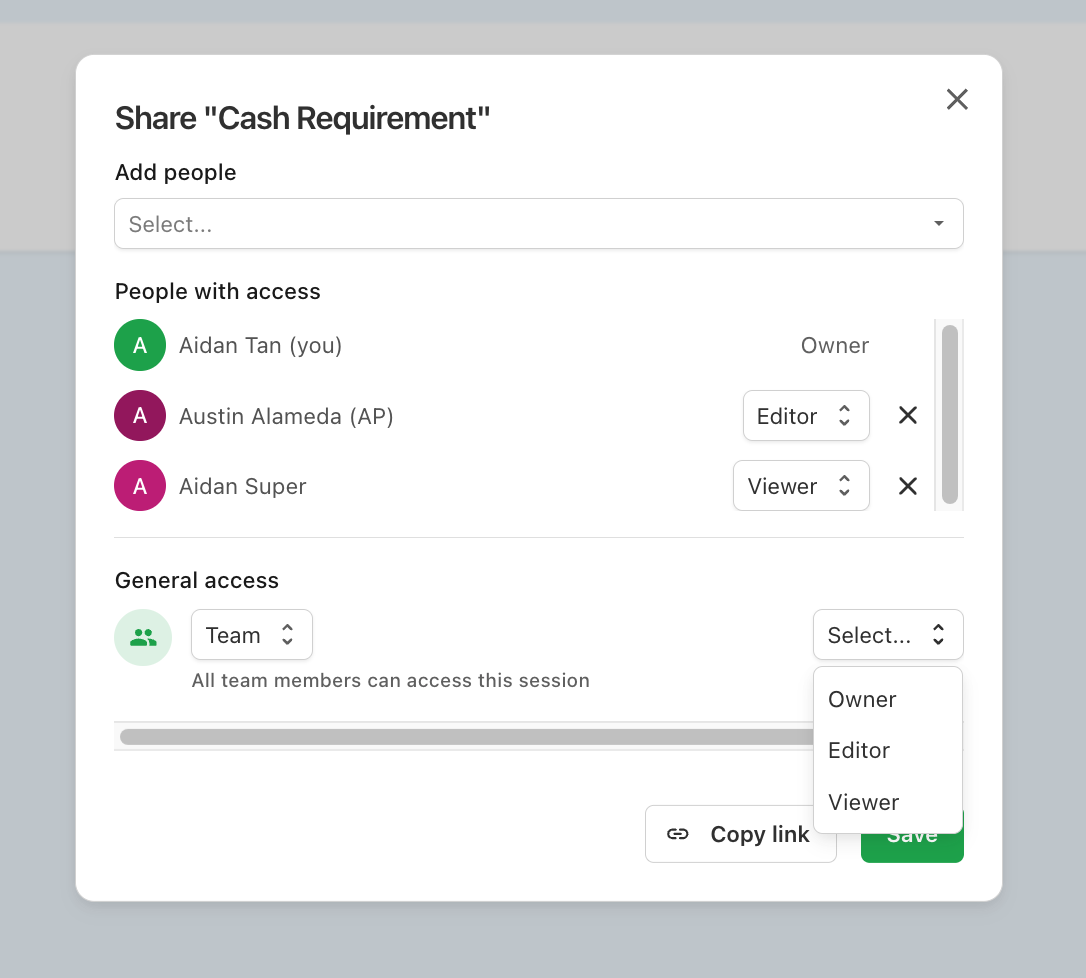
- Add people — pick teammates to grant access immediately. Set each person's role — Owner, Editor, Viewer, or No access — in the People with access list. Teammates who only have view-level product access can only be assigned Viewer.
- General access — choose the report's overall visibility:
- Team — "All team members can access this session", with a dropdown for the team-wide role (Viewer or Editor).
- Restricted — "Only people added above can access this session".
- Press Save.
If someone has both an individual role and a team-wide role, the higher of the two applies.
Scheduled delivery
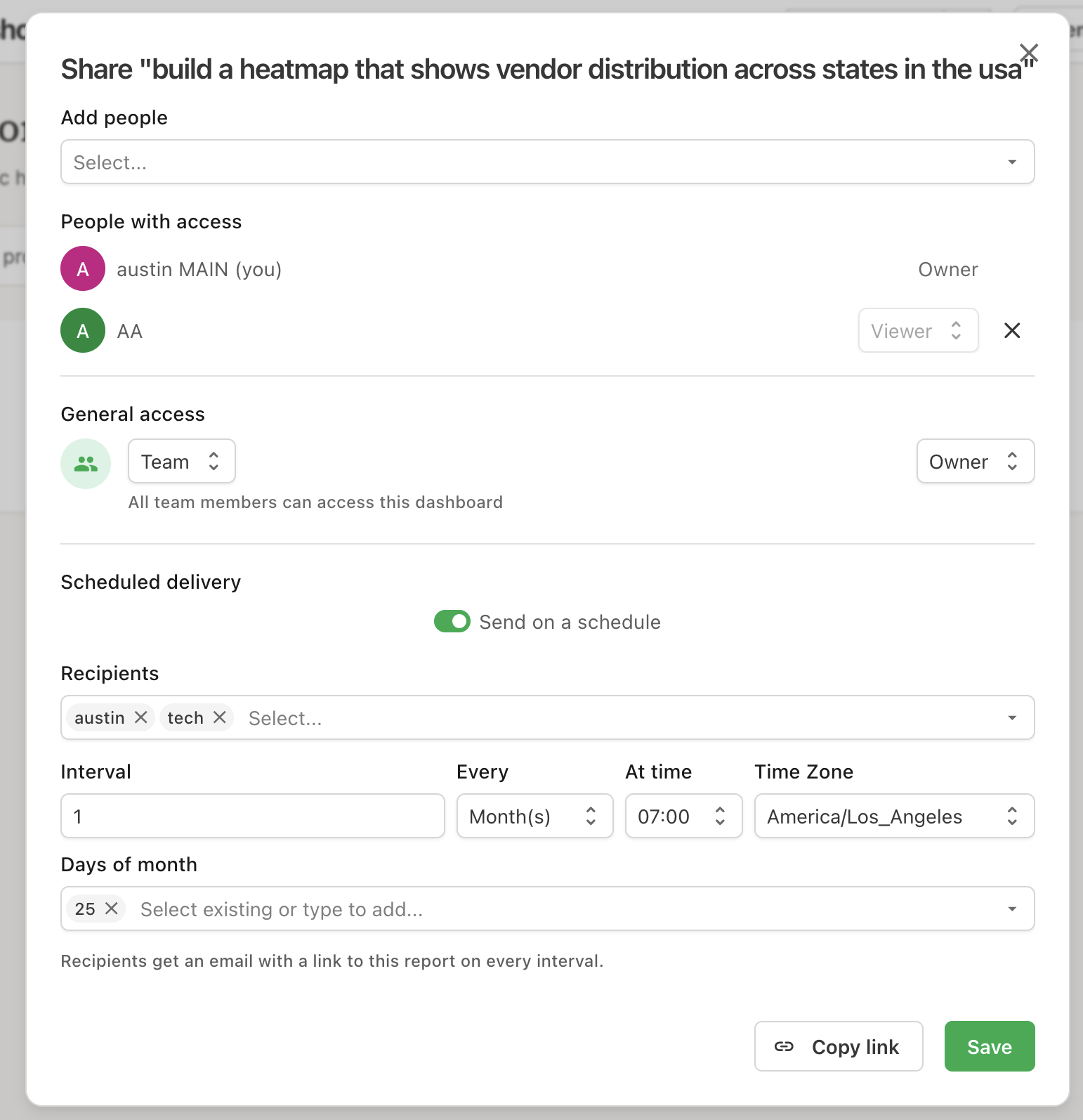
The Share dialog can also email a report to your teammates on a recurring schedule. Turn on Send on a schedule under Scheduled delivery, pick who gets it and how often, then press Save.
Recipients
The Recipients picker only offers people who can already open the report — the owner, plus anyone in the People with access list, or the whole team when general access is set to Team. You can include yourself.
Changing general access from Team to Restricted narrows the picker in the same breath, so recipients who would lose access drop out before you save.
Interval
The schedule is every N of a unit, plus the anchors that unit needs:
| Unit | Extra settings | Longest interval |
|---|---|---|
| Hour(s) | none | 23 |
| Day(s) | at time, time zone | 365 |
| Week(s) | at time, time zone, days of week | 52 |
| Month(s) | at time, time zone, days of month | 24 |
- At time and Time Zone — the local time the email goes out, in the IANA time zone you choose. The zone defaults to your browser's.
- Days of week — which weekdays a weekly schedule fires on. Leave it empty to keep firing on the same weekday you set the schedule up on.
- Days of month — one or more days from 1 to 31; a monthly schedule needs at least one. A day past the end of a short month falls on that month's last day, so the 31st fires on February 28th.
The first email goes out at the next occurrence after you save — saving doesn't send one immediately.
What recipients get
Each recipient gets their own email announcing that the report is ready, with an Open report button linking to it. The email carries no report content or attachment, and it's sent under the report owner's name no matter who set the schedule up.
Recipients open the report in Agave AI, so they always see its current state — the schedule is a nudge with a link, not a snapshot.
Recipients are re-checked against the report's permissions on every send, not just when you save. Anyone who has lost access since is skipped. If nobody on the list still has access, that send is skipped entirely and delivery resumes on its own once access is restored — the schedule keeps its settings either way.
Changing or stopping delivery
Reopen the Share dialog to edit the recipients or the interval. Switching Send on a schedule off and saving stops delivery and clears the recipient list; deleting the report cancels its schedule too.
Anyone who can share the report — its Editors and its Owner — can set up, change, or turn off scheduled delivery. Up to 200 recipients per report.
Sharing a folder
Folders have sharing settings of their own, using the same roles as reports. Open a folder's ⋯ menu and select Share — the dialog works just like report sharing:
- Add people — grant individual teammates a role. As with reports, teammates with view-level product access can only be Viewer, and only the Owner can grant the Owner role.
- General access — Team ("All team members can access this folder", with a team-wide role) or Restricted ("Only people added above can access this folder").
Unlike reports, new folders start shared with the whole team as Viewers. The creator is the folder's Owner.
Folder roles control the folder itself:
- Viewer — see and open the folder.
- Editor — rename the folder, add reports, and share or change its permissions.
- Owner — everything above, plus delete the folder.
Saving a folder's permissions updates the sharing permissions of every report in the folder — each report's general access and people list are replaced with the folder's (the report's own Owner is preserved). The Share dialog asks you to confirm before applying. Sharing an individual report inside a shared folder changes that report only, until the folder's permissions are next saved.
Copying a link
The Share dialog's Copy link button copies the report's URL for pasting into chat or email. The link itself doesn't grant access — recipients must already have access through the settings above.
There are no public or anonymous links, and reports can't be shared outside your team.
Requesting access
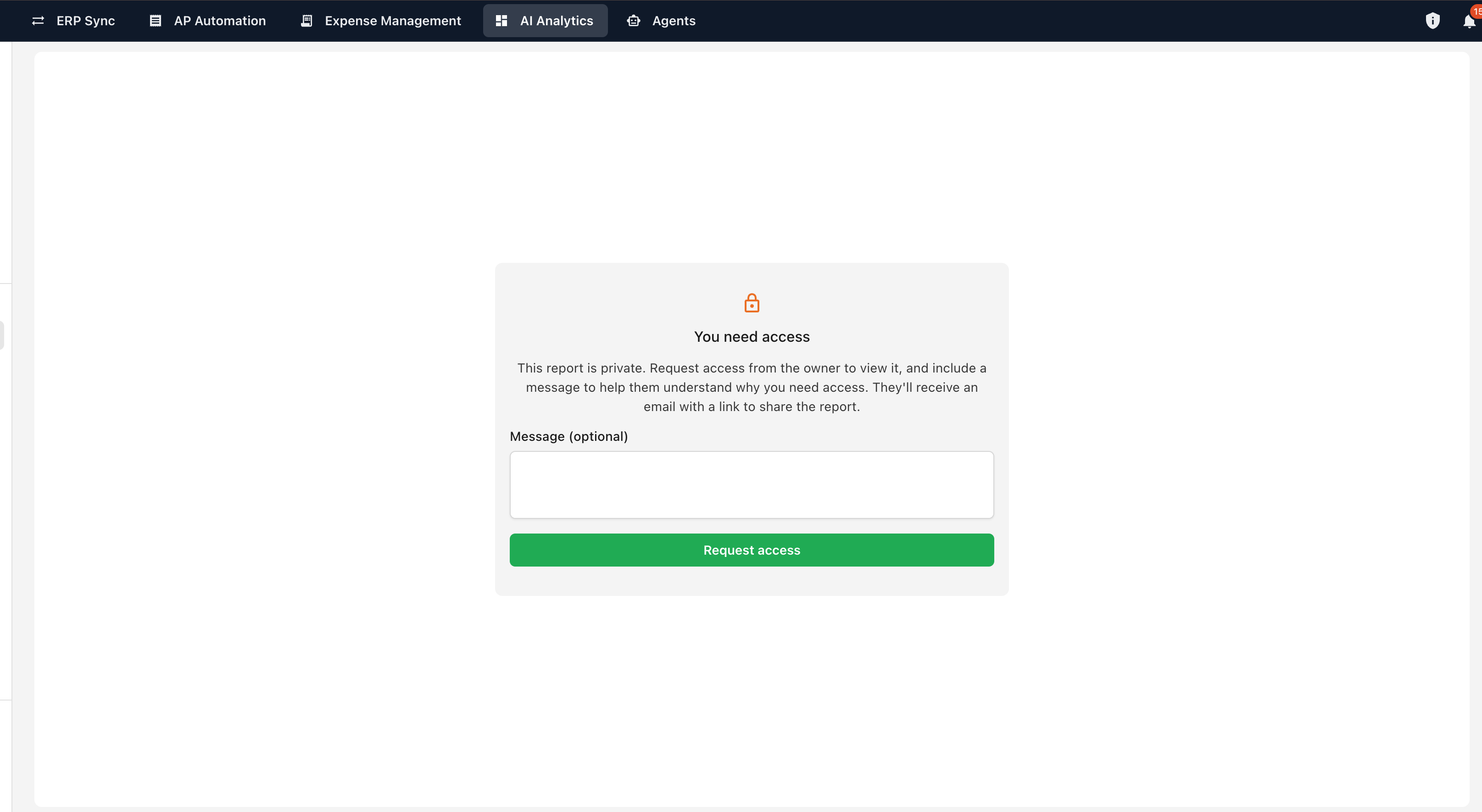
If you open a link to a report that hasn't been shared with you, you'll see a You need access page in place of the report. From there you can ask the owner for access:
- Optionally add a message explaining why you need it.
- Press Request access.
The owner receives an email with your message and a link to the report, where they can grant access from the Share dialog. Once you've sent a request the page confirms it, so you don't send the same request twice.