Organizing Reports
As your team's report library grows, folders, stars, the Official badge, and the All reports toolbar keep everything findable.
The All reports page
All reports shows every report you can access — reports you own, reports shared with you individually, and reports shared with the whole team — plus your team's folders. The toolbar lets you narrow it down:
- Search reports by name.
- Status filter — All statuses, Official, or Starred.
- Sort — Last viewed (default), Last modified, Oldest, Name (A–Z), or Name (Z–A). Sorting by Last viewed uses your viewing history, so the reports you work in most rise to the top.
- Creator filter — show reports by a specific owner.
Each report card shows the report's name, its owner, the last-modified date, a star if you've starred it, and a green Official chip if it's official.
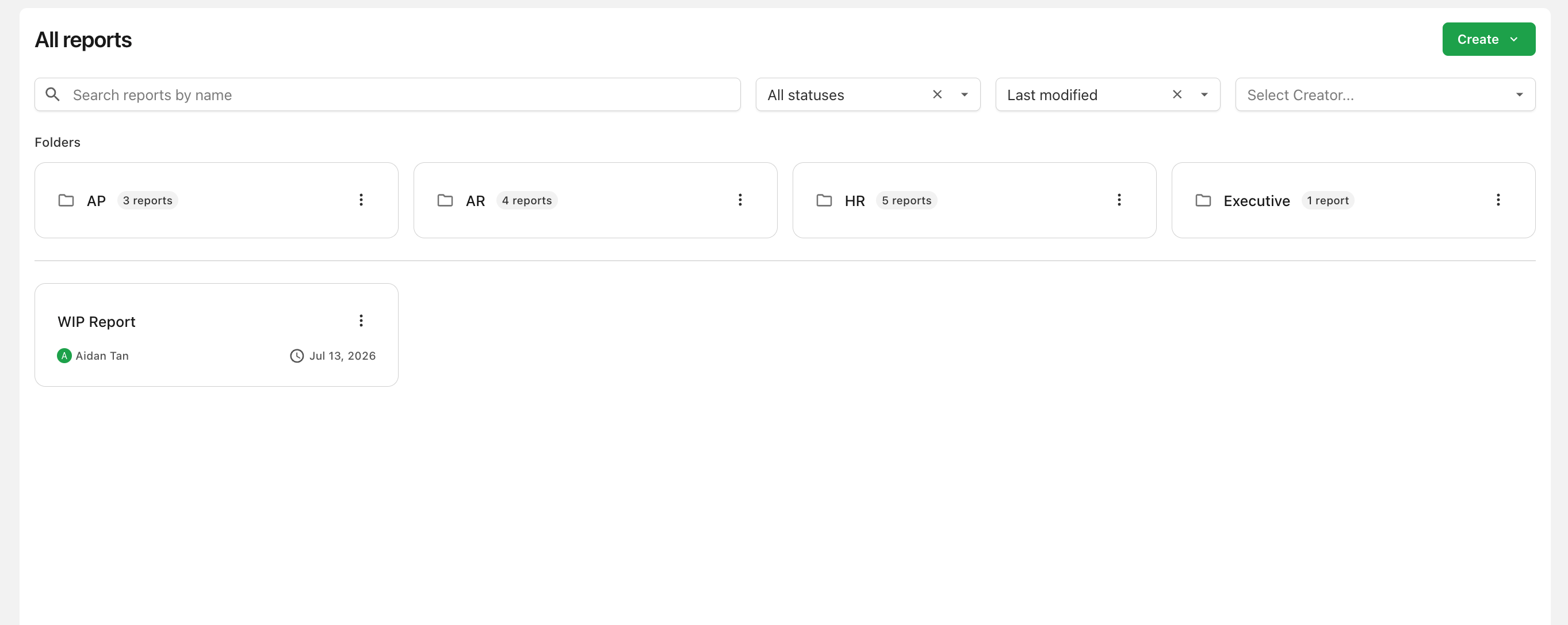
Folders
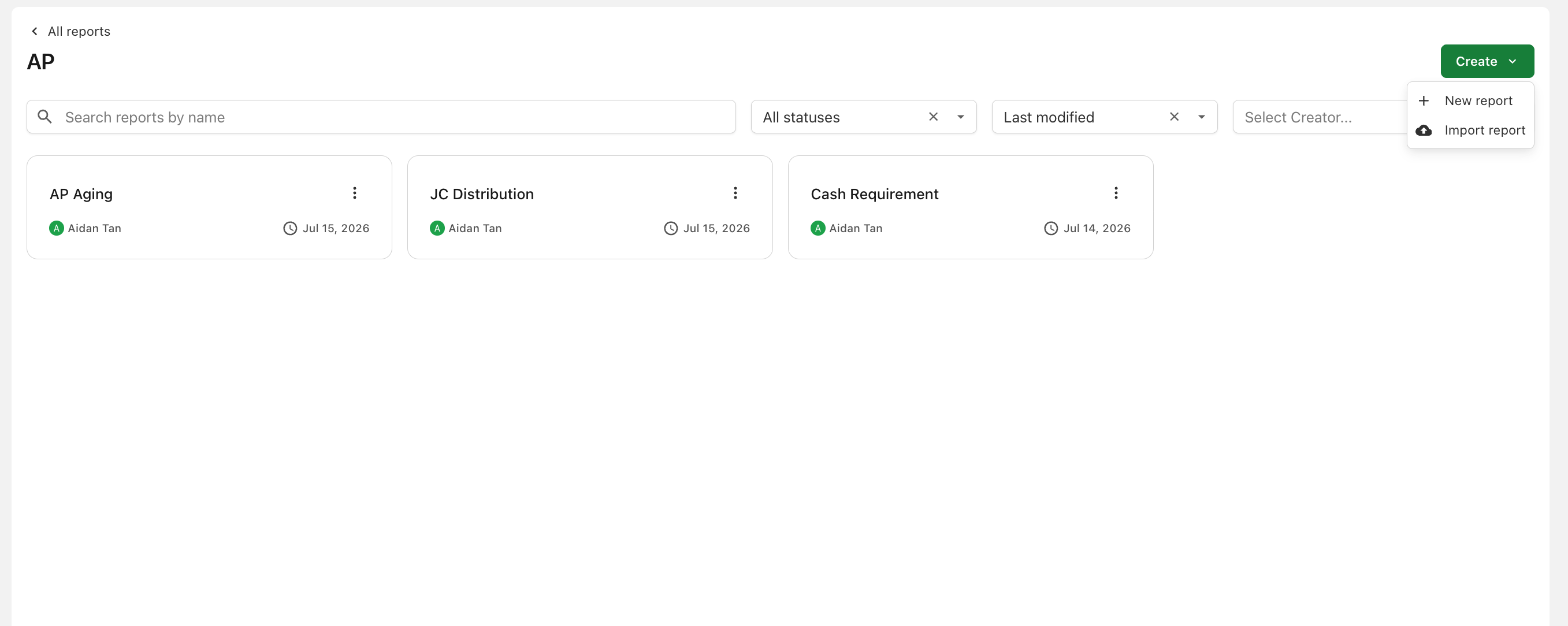
Create a folder from Create → New folder (or from the sidebar). New folders are visible to your whole team as Viewers by default; the creator is the folder's Owner and can restrict access from the folder's sharing settings.
Folders are listed alphabetically. To put reports in a folder:
- Drag a report card onto a folder on the All reports page — you'll be asked to confirm the move,
- Use Move to folder in a report's ⋯ menu, or
- Use Add current report in a folder's ⋯ menu to pick several reports at once.
A folder's ⋯ menu (shown to folder Editors and Owners) also offers Share, Rename, and Delete (Owner only). Deleting a folder never deletes reports — "Reports inside will be moved back to All reports."
A folder can be shared with the whole team or restricted to specific people, and saving its permissions updates the permissions of every report inside. See Sharing a folder.
Starring
Star a report from its ⋯ menu to pin it to your personal Starred section in the sidebar. Stars are private — "Only you see your stars." Anyone who can view a report can star it, and starring has no effect on sharing or on what others see.
Official reports
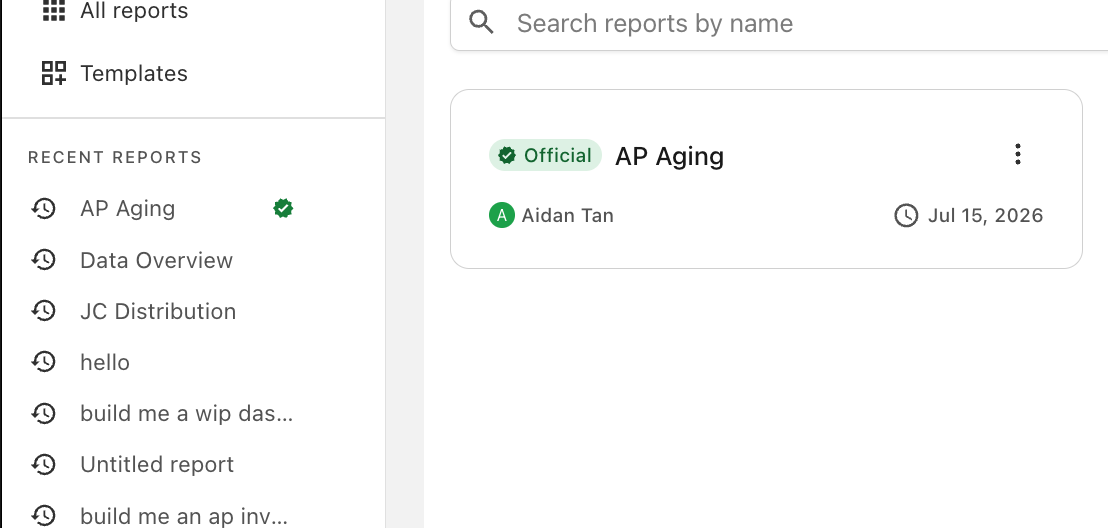
Marking a report Official gives it a green Official badge across the app — on its card, in the sidebar, and in the Official status filter on All reports. It's your team's signal for "this is the trusted version."
- Only the report's Owner can Mark official or Remove official (from the ⋯ menu).
- The badge doesn't change access — the report still needs to be shared for teammates to open it.
The sidebar
The sidebar keeps your most important reports one click away:
- All reports — with an expandable tree of your folders.
- Templates — see Templates.
- Starred — your personal starred reports (appears once you've starred something).
- Recent reports — your 10 most recently modified reports.
Managing a report
A report's ⋯ menu also includes:
- Rename (Editors and Owners) — change the report's name and description.
- Duplicate (Editors and Owners) — creates a full copy, including all versions, owned by you. Handy for building a variation without touching the original.
- Delete (Owner only) — permanently deletes the report: "…will be permanently deleted. This cannot be undone." All versions, chat history, and sharing settings are removed. To tidy up without deleting, archive individual versions instead.